
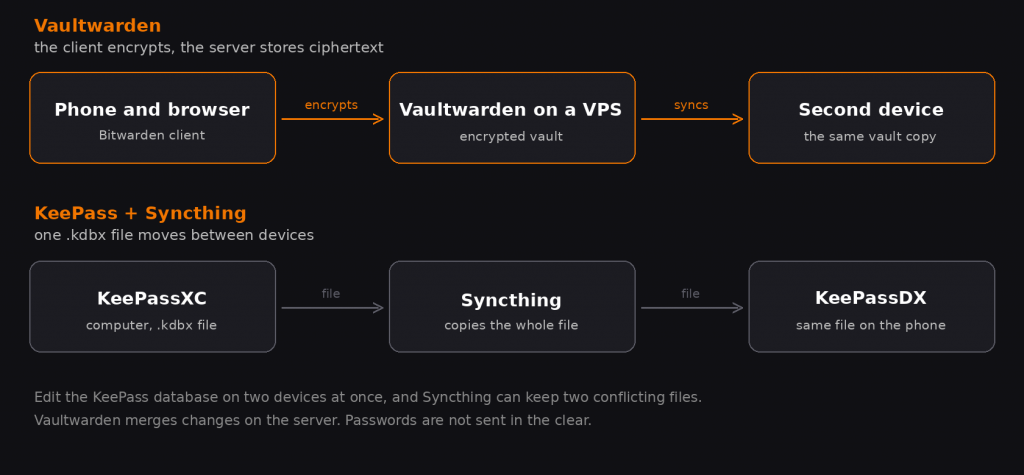
Vaultwarden is a light password server that the official Bitwarden apps understand. The vault is encrypted on the phone or computer before anything is sent, and the server stores only ciphertext. This guide sets it up on a small VPS, with a domain so the address is https://vault.example.com, and compares it with KeePass synced through Syncthing.
The Vaultwarden server is not a product of Bitwarden Inc. It is a separate open-source program that speaks the same API. Install the apps from bitwarden.com/download and enter your own domain as the server URL, not the Bitwarden cloud.
What Vaultwarden is
The official Bitwarden server is built for an organization and is heavy to run. Almost nobody installs it on one VPS. Vaultwarden implements the part you actually use: the vault, folders, attachments, TOTP codes, and sharing inside a family. One or two people fit in 1 GB of RAM.
The server never knows the master password, and it cannot be recovered. Lose the password and you did not save the recovery key from the vault settings, and the entries stay unreadable even with a full disk copy. That is the price of the host not seeing your passwords.
One caveat. The Bitwarden mobile and desktop apps check the server themselves. The web page of the vault is served by your VPS: whoever controls that server can swap the page in a browser. Run Vaultwarden on your own VPS, keep the container updated, and do not leave registration open.
Vaultwarden or KeePass with Syncthing
KeePass is one encrypted .kdbx file. KeePassXC opens it on a computer, KeePassDX on Android. Syncthing carries the file between devices. There is no password server, and the database still opens offline.
The weak point is the file itself. Change a password on the phone and on the computer before Syncthing has caught up, and you get two files. One set of edits has to be merged by hand. A family vault is awkward too: everyone shares one master password, or everyone keeps a separate database.
| What we compare | KeePass and Syncthing | Vaultwarden |
|---|---|---|
| Where passwords live | a .kdbx file on your devices | ciphertext on your server |
| Sync | Syncthing copies the file | the server merges changes |
| Edits at the same time | two conflicting files | normal, one vault |
| Offline | the file opens locally | the app shows the last copy; new edits wait for the server |
| Family | a shared file and one master password | organizations and collections, each person has a login |
| Browser | the KeePassXC extension | the official Bitwarden extension |
| Upkeep | update the apps | domain, certificate, container, and a backup |
KeePass with Syncthing is the simpler choice when you are the only person using the passwords and Syncthing is already running. Vaultwarden earns its place when you want a phone, a browser, and a second person without fighting over a file. An existing KeePass database can be imported later: the Bitwarden web vault imports .kdbx, as described in the Bitwarden help.
A domain at Cloudflare and a VPS at Timeweb Cloud
Away from home, the phone has to open the vault at a normal address with a certificate it trusts. Bitwarden apps reject a self-signed certificate. Buy the domain at Cloudflare Registrar. The price is what the registry charges, without a registrar markup, and DNS lives in the same account. Leave the root domain for a site or for mail. The vault only needs a subdomain such as vault.example.com. Substitute your own domain.
The server is a small VPS at Timeweb Cloud. Vaultwarden does not need a GPU or a fast CPU: one core, 1 GB of RAM and 10 GB of disk are enough. Use an Ubuntu or Debian image. The IP address from the panel is what you will put in DNS.
Before you open ports 80 and 443, turn off SSH password login. Follow the VPS security checklist: a key, a separate user, UFW, Fail2ban. Otherwise the password server sits behind someone else’s root password.
DNS records
Create the record in Cloudflare before the install. Let’s Encrypt will not issue a certificate until the name resolves.
The minimum is an A record: vault points at the VPS IP. If the VPS has IPv6, add an AAAA record too. Leave the apex and www alone when a site already uses them.
Set that A record to DNS only, the grey cloud. With the orange proxy on, Let’s Encrypt and the Bitwarden apps talk to Cloudflare instead of your server, and the steps below fail. Check the name at dnschecker.org. The answer should be the VPS IP. That is usually minutes or hours, sometimes up to a day.
Installing on a VPS
The commands below are for Ubuntu. On Debian the order is the same, but the repository line uses debian instead of ubuntu. Install Docker Engine and the Docker Compose plugin from the official docs. The server source is the Vaultwarden repository.
apt update && apt install -y ca-certificates curl
install -m 0755 -d /etc/apt/keyrings
curl -fsSL https://download.docker.com/linux/ubuntu/gpg -o /etc/apt/keyrings/docker.asc
chmod a+r /etc/apt/keyrings/docker.asc
echo "deb [arch=$(dpkg --print-architecture) signed-by=/etc/apt/keyrings/docker.asc] https://download.docker.com/linux/ubuntu $(. /etc/os-release && echo "$VERSION_CODENAME") stable" > /etc/apt/sources.list.d/docker.list
apt update
apt install -y docker-ce docker-ce-cli containerd.io docker-compose-plugin
If the firewall is not already on from the checklist, allow SSH, HTTP and HTTPS. Allow the SSH port you actually use, or UFW will lock you out.
ufw allow OpenSSH
ufw allow 80/tcp
ufw allow 443/tcp
ufw enable
Install into /opt/vaultwarden. Generate the admin token before the first start and save it in whatever you use for passwords today. It is the password for the /admin page, not the vault master password.
mkdir -p /opt/vaultwarden
cd /opt/vaultwarden
openssl rand -base64 48
Put compose.yaml next to it. Substitute your domain, the email for Let’s Encrypt, and the token. The email goes to the certificate authority, not into the vault. Leave SIGNUPS_ALLOWED set to true until your own account exists, or you will not be able to create it.
services:
  vaultwarden:
    image: vaultwarden/server:latest
    container_name: vaultwarden
    restart: always
    environment:
      DOMAIN: "https://vault.example.com"
      SIGNUPS_ALLOWED: "true"
      ADMIN_TOKEN: "paste_the_token"
    volumes:
      - ./vw-data:/data

  caddy:
    image: caddy:2
    container_name: caddy
    restart: always
    ports:
      - 80:80
      - 443:443
      - 443:443/udp
    volumes:
      - ./Caddyfile:/etc/caddy/Caddyfile:ro
      - ./caddy-config:/config
      - ./caddy-data:/data
    environment:
      DOMAIN: "https://vault.example.com"
      EMAIL: "you@example.com"
The Caddyfile in the same directory does not need your domain typed in. The address and the email come from compose.yaml. Caddy gets the certificate itself and proxies requests to Vaultwarden, including WebSocket, on the same port.
{$DOMAIN} {
	tls {$EMAIL}
	encode zstd gzip
	reverse_proxy vaultwarden:80 {
		header_up X-Real-IP {remote_host}
	}
}
This layout follows the Docker Compose example in the Vaultwarden docs: the server container is not exposed, and only Caddy is reachable from the internet.
cd /opt/vaultwarden
docker compose up -d
docker compose logs -f caddy
The Caddy log should show a certificate being issued, with no DNS error. Ctrl+C stops the log view and leaves the containers running. Open https://vault.example.com and create the account. Then set SIGNUPS_ALLOWED to “false” in compose.yaml and apply it.
cd /opt/vaultwarden
docker compose up -d
https://vault.example.com/admin opens with the ADMIN_TOKEN. Invite the next person from there instead of turning open registration back on. Email invitations can wait: without SMTP you can still create the account from that page.
Bitwarden clients
The browser extension, the desktop app and the phone app are the official ones, from bitwarden.com/download. On the login screen, before the email field, choose self-hosted and enter https://vault.example.com. A Bitwarden cloud account is a different login. The email and master password are the ones you set on your server.
Phone and tablet
- iPhone and iPad — App Store.
- Android — Google Play.
- Android without Google services — the F-Droid build. It is not in the main F-Droid catalog: add the repository
https://mobileapp.bitwarden.com/fdroid/repoin the F-Droid client. The address and fingerprint are on the Bitwarden download page. This build has no push notifications, so the vault is synced by hand. Ready-made APKs are in the Android app releases.
Desktop
- Windows — the installer, a portable build that does not update itself, and the Microsoft Store. With Chocolatey:
choco install bitwarden. - macOS — a DMG image and the Mac App Store. With Homebrew:
brew install bitwarden. - Linux — a deb package, an rpm package, an AppImage, Snap, and Flatpak.
Browser
- Chrome, Brave, and Vivaldi.
- Firefox and Tor Browser.
- Microsoft Edge.
- Safari — the extension from the Mac App Store.
- Opera.
- DuckDuckGo for Mac — built-in integration, not a separate extension.
The web vault is your own server address, https://vault.example.com. The page vault.bitwarden.com does not connect to that server.
The phone keeps a copy of the vault and shows it offline. New entries go to the server when the connection is back. Instant notices about an edit from another device are optional: Vaultwarden uses Bitwarden’s push service for that, and the passwords themselves are not sent there. How to turn push on is in the docs. Everyday use does not need it.
Synology, Home Assistant and Proxmox
The VPS above is the path when the vault has to work away from home. The same server also runs on hardware you already have. The Bitwarden clients stay the same. From outside they need HTTPS: a public IP with ports 80 and 443 forwarded to a reverse proxy, or a tunnel when there is no public IP — CloudPub, Cloudflare Tunnel, or a reverse proxy on another server that already has a public address.
Synology. Package Center installs the Vaultwarden package from SynoCommunity, rather than a container you assemble yourself. The package page is synocommunity.com/package/vaultwarden. Adding the SynoCommunity repository is already covered in SynoCommunity on Synology. The package listens on port 8180. The web vault will not open over plain HTTP: DSM needs a reverse proxy with a certificate, a WebSocket header, and a domain. The steps are in the package docs. Data lives in /var/packages/vaultwarden/var/, and that directory is what you back up.
Home Assistant. The Vaultwarden add-on is in the Home Assistant Community Add-ons store. The source is hassio-addons/app-vaultwarden. The add-on store exists on Home Assistant OS, the install described in Home Assistant on Proxmox. A Home Assistant container without HAOS does not have this item. The add-on is not a substitute for a domain and a certificate: a phone on the road still arrives at an https address.
Proxmox. A ready LXC is installed by the script at community-scripts.org/scripts/vaultwarden. Run the command in the Proxmox VE shell, not inside some other virtual machine:
var_os='debian' bash -c "$(curl -fsSL https://raw.githubusercontent.com/community-scripts/ProxmoxVE/main/ct/vaultwarden.sh)"The script builds Vaultwarden from source, which takes a while on a small node. The certificate in that container is self-signed by default. It is enough to look at the page on your own network, and it is not enough for the Bitwarden apps on a phone. For a phone outside the house, use the same approach as on the VPS: a domain, an A record, and a reverse proxy with a real certificate.
Backups and updates
A copy of the server without a copy of the vw-data directory is not a backup. Stop the container while you archive, so the SQLite file is not cut in half. Take the archive off the VPS onto another device.
cd /opt/vaultwarden
docker compose stop
tar -C /opt/vaultwarden -czf /root/vaultwarden-$(date +%F).tar.gz vw-data
docker compose start
An update is the same two containers. After pull, open the vault in a browser and on the phone and check that login still works.
cd /opt/vaultwarden
docker compose pull
docker compose up -d
Common questions
What is Vaultwarden?
A light open-source password server. It is not owned by Bitwarden, but the official Bitwarden apps work with it when you enter your own server address.
Can the VPS host see my passwords?
No. The client encrypts the vault before sending it, and the disk stores ciphertext. The host can see that the server is yours and that clients connect to it. The web page of the vault is served by that same server, so keep the container updated and do not leave registration open.
What if I forget the master password?
The vault cannot be recovered. Neither the Vaultwarden admin nor a disk copy reveals the password. Save the recovery key from the vault settings while you still remember the master password.
How is this different from KeePass and Syncthing?
KeePass is one file, and Syncthing copies it. That is simpler for one person and needs no server. Vaultwarden is for several people, or for when you do not want conflicting copies of the file.
Can I run Vaultwarden without my own domain?
On a home network, yes, but the Bitwarden apps expect HTTPS with a certificate the phone trusts. Logging in from outside needs a domain. The self-signed certificate from the Proxmox script is not enough for that.
How much VPS does it need?
One core, 1 GB of RAM and about 10 GB of disk is enough for a family. No GPU.
Read more
- VPS security on Ubuntu and Debian: SSH, UFW, Fail2ban
- Syncthing: file sync without the cloud and without a public IP
- SynoCommunity on Synology: qBittorrent, Jellyfin and Syncthing without Docker
- Install Home Assistant on Proxmox VE
In short: one person and Syncthing already running means stay with KeePass. A browser, a phone and a family without file conflicts means Vaultwarden on a small VPS, registration closed, and a copy of vw-data kept off the server. Which one are you already using, KeePass or your own server? Leave a comment.
No email, no trackers — just the update feed.