


- Why settings beat lectures for Roblox child safety
- What changed in Roblox in 2026
- How to set up Roblox parental controls
- Your child’s age and the Roblox age check
- Which games are allowed: content maturity and blocking
- Roblox chat settings for kids: chat, connections and voice
- Robux purchases: spending limits and notifications
- Screen time limits
- Protecting your child’s account from hijacking
- Suspicious links and scammers
- If something has already happened
- A 10-minute family rule
- Roblox parental controls checklist
- What is next
- FAQ: Roblox parental controls and child safety
Roblox parental controls are not about bans or scare stories — they are one calm evening of settings plus a short family rule. In the first article of our series we agreed that Robux purchases and links from chat go through a parent only. Here is how to back that up with the 2026 Roblox settings without turning the game into a battlefield.
Roblox is a big platform: other people’s games, chat, connections, an in-game currency. That is a reason to set up the account once, the same way we set up email, a router or backups: clear limits, parent access and a habit of asking first.
Updated in September 2026: over the past year Roblox has noticeably reworked parental controls, chat and age restrictions.
Why settings beat lectures for Roblox child safety
A “do not talk to strangers” lecture is forgotten within a week. Roblox parental controls work every day: who can message, who can add your child as a connection, how much can be spent. You still need to talk with your child — on top of limits that are already switched on, not instead of them.
The goal is a 30–40-minute checklist you go through together: link the parent account, walk through the settings, agree on the “links and purchases go through Mom or Dad” rule — and get back to Roblox Studio.
What changed in Roblox in 2026
- Age checks for chat. Since January 2026 any chat is available only after an age check — a selfie video in the app or, from 13, an ID.
- Age-based chat. There are six groups: under 9, 9–12, 13–15, 16–17, 18–20 and 21+. By default users can chat with their own and adjacent groups, so kids under 16 do not chat with adults.
- Account types. Kids under 9 get Roblox Kids, ages 9–15 get Roblox Select with age-appropriate games.
- Parent accounts. A parent creates their own account, verifies their age and manages the child’s settings from it.
- Friends became Connections. Trusted friends can be added for a child under 13 only with a parent’s approval.
Roblox itself notes that text and voice chat may be disabled in some countries, so check what is available where you live.
The full official description of every setting is on the Roblox Parental Controls page.
How to set up Roblox parental controls
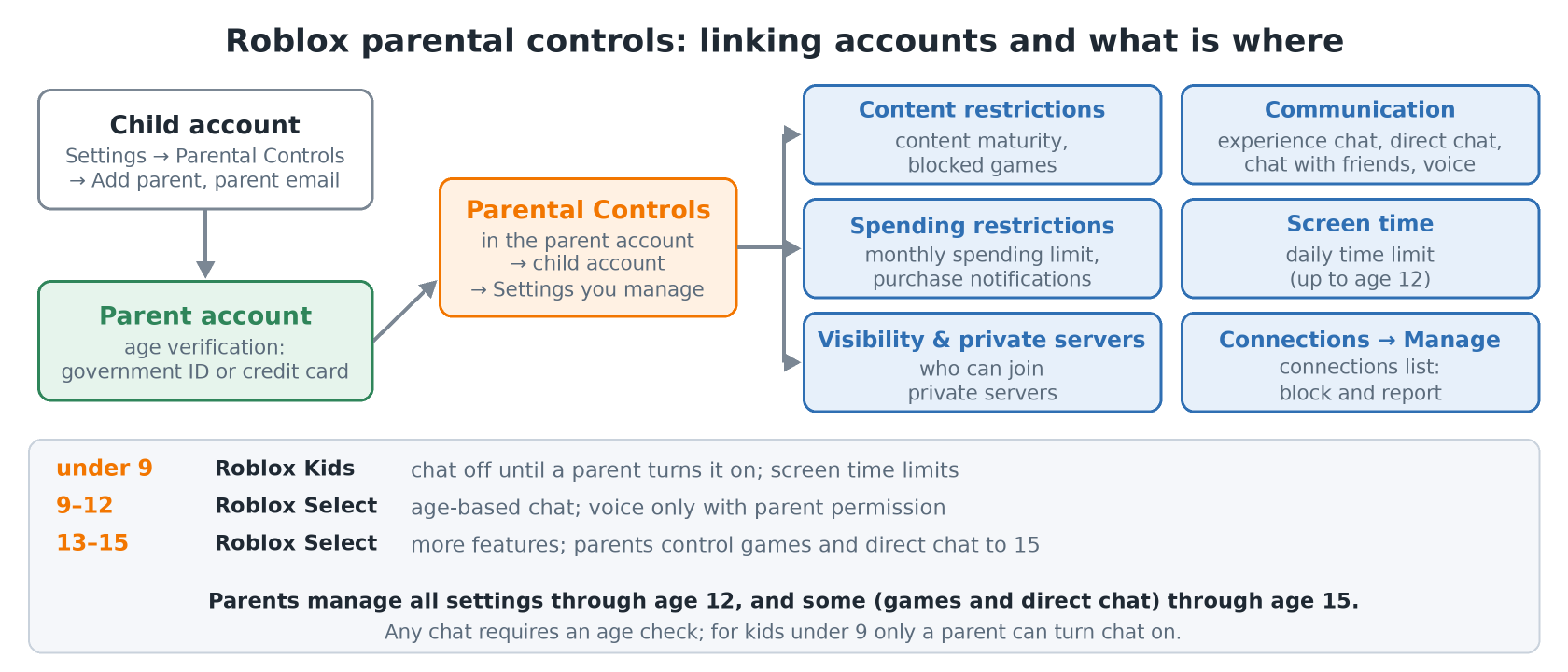
- In your child’s account open Settings (the gear icon on desktop, or More → gear on mobile) → Parental Controls and tap Add parent.
- Enter the parent’s email address. Roblox sends an email with a link.
- Follow the link to create an account or sign in, and verify your age with a government ID or a credit card.
- Tap Agree to link the accounts. Your child’s settings now live in your account: Settings → Parental Controls → child account → Settings you manage.
Parents manage all settings through age 12, and some — game access and direct chat — through age 15. You can unlink the accounts in the same place, but then limits and approvals go away too.
Check the child account itself as well: the email should be one a parent can access, and the password long, unique and stored in the family password manager rather than in Discord or on a sticky note.
Your child’s age and the Roblox age check
The date of birth at sign-up sets the starting restrictions, so enter your child’s real age, not “so there is more stuff”. For chat, Roblox also asks for an age check: the app records a short selfie video, the Persona service estimates the age, and the images are deleted right after processing. The check is optional, but chat stays locked without it.
| Age | Account | What is available |
|---|---|---|
| under 9 | Roblox Kids | age-appropriate games; chat off, only a parent can turn it on; screen time limits |
| 9–12 | Roblox Select | chat with own and adjacent age groups; voice and trusted friends with parent permission; screen time limits |
| 13–15 | Roblox Select | more features and trusted connections; parents control game access and direct chat to 15 |
| 16–17 | Roblox | all games except 18+; age-based chat |
| 18+ | Roblox | full access; Restricted games after age verification |
If the facial estimate gets the age wrong, it can be fixed: teens over 13 use an ID in Settings → Account info, and a parent can correct a younger child’s age through the linked account.
Which games are allowed: content maturity and blocking
- Content maturity (Content restrictions → Content maturity) — a slider with maturity levels. The description under the slider explains each level; Restricted games are available only to verified 18+ users.
- Blocked games — block a specific game even if it fits the age rating. If your child is playing it right now, the block applies on the next visit.
- Requests from your child — when your child asks to open a game, the request shows up in Parental Controls, where you allow or decline it.
- Sensitive issues — games themed on sensitive social, political or religious topics. They are off by default under 13, and only a parent can allow them.
Roblox chat settings for kids: chat, connections and voice
You do not have to turn everything off forever — the point is to narrow the circle to people your child actually trusts. The settings live under Communication:
- Experience chat — the public in-game chat everyone in the game can see. You can turn it off completely for younger kids.
- Direct chat — one-on-one messages inside games. Parents control it through age 15.
- Chat and party with friends — the Chat tab with connections outside games. It is available from 9: ages 9–12 only with trusted friends, and for 13–15 parents choose trusted friends or all connections.
- Voice chat with friends — off under 13; for ages 9–12 a parent can allow voice with trusted friends. Younger kids are better off starting without voice.
- Private servers (Visibility & private servers) — who can join your child’s private servers: connections only or no one.
Parents see the child’s connections in Parental Controls → Connections → Manage: open a profile, block a user or report them. A blocked user cannot message your child or add them again without your permission.
Rules no setting replaces: never share a real name, school, address, phone number or social media links; know where the block and report buttons are; add new friends deliberately rather than from a random round. A family phrase that works: “On Roblox we make friends as carefully as in a new school: watch first, keep personal things private, and bring strange requests to an adult right away.”
Robux purchases: spending limits and notifications
Robux are a common source of tension: your child wants a skin “right now”, a parent’s card is already saved in the app store, one tap and the money is gone. Both Roblox settings and phone settings help here.
- Spending restrictions — a monthly limit on Robux and in-game subscriptions. It resets at the end of the calendar month and does not roll over. Gift card redemption is not affected.
- Purchase notifications — for every transaction, high spend only, or none. High spend alerts are on by default for linked parents.
- App store — on iPhone turn on Ask to Buy in Family Sharing; on Google Play require authentication for every purchase or approvals via Family Link.
- Payment card — do not keep your main bank card as the default payment method on your child’s device. A Roblox gift card or a one-off purchase together is calmer.
- Budget — agree in advance, for example a fixed amount per month or only a holiday gift. The rule matters more than the amount.
Sending Robux to other players is available only to Roblox Plus subscribers, and younger users need a parent’s approval for every transfer. “Free Robux”, “enter your password to claim”, “verify your account on this site” are almost always scams: real purchases go only through Roblox and the official app store.
Screen time limits
Among Roblox parental controls, a daily time limit is available for Roblox Kids accounts and children aged 9–12. Once the limit is reached, your child sees a message and cannot play for the rest of the day. For teens 13+ Roblox suggests talking about limits instead of enforcing them technically — which matches our experience: a rule your child helped write works better than a timer.
Protecting your child’s account from hijacking
- Turn on 2-Step Verification in Roblox itself: Settings → Security → 2-Step Verification. An authenticator app is the most reliable option; an email code is the fallback.
- Turn on two-factor authentication for the email linked to your child’s account as well, or “someone asked me to reset the password” can end with a lost account.
- Never share a password, an email code or verification codes. Roblox staff never ask for them in game chat.
- Do not download a “Roblox client” from unknown sites or install “free Robux” browser extensions.
Suspicious links and scammers
The most common scenario is not a “scary stranger” but plain haste: someone drops a link to a “free skin”, a “cool generator” or “log in to claim your prize”. Your child clicks — and hands over the login or installs something unwanted.
- Any link from chat, Discord, Telegram or comments goes to a parent first, even if “everyone in class already clicked it”.
- Official addresses are roblox.com and create.roblox.com. Look-alike domains with typos, “roblox-free-…” and shortened links — stop.
- Red flags: a request to move to another messenger, send photos, keep the conversation secret or “help” in exchange for Robux.
It is the same skill as spotting email phishing: not “ban the internet” but teach your child to pause for a second before clicking.
If something has already happened
Even perfect Roblox parental controls are not a 100% guarantee. What matters is that your child comes to you right away and you know what to do:
- Stay calm and thank your child for telling you. If kids get scolded for reporting, next time they stay silent.
- Take screenshots of the conversation and the other user’s profile — before blocking.
- Block the user and send a report from the menu next to the message or profile. A parent can do the same in Parental Controls → Connections.
- If a password was entered on a fake site, change it from a parent’s device, sign out of all sessions, check the email and turn on 2-Step Verification.
- If Robux or items are missing, contact Roblox Support. For threats, blackmail or sexual content, contact the police.
A 10-minute family rule
Say it out loud once and pin it next to the computer:
- Personal info — name, school, address, phone — never goes into Roblox.
- New connections and voice chat only with a parent’s permission.
- Purchases and Robux only through a parent.
- Links from chat — show an adult first.
- Someone asks for a password, a code or to “verify your account” — stop and tell a parent right away. No punishment for telling: finding out in time matters more.
Roblox parental controls checklist
| What to check | Where |
|---|---|
| Parent account is linked | child account → Settings → Parental Controls |
| Real age, email a parent can access | Settings → Account info |
| Content maturity fits your child | Settings you manage → Content restrictions |
| Chat and voice set up for the age | Settings you manage → Communication |
| No strangers among connections | Parental Controls → Connections → Manage |
| Monthly spending limit and notifications | Settings you manage → Spending restrictions |
| Screen time (up to age 12) | Settings you manage → Screen time |
| 2-Step Verification is on | Settings → Security |
| App store purchases need approval | Apple Family Sharing or Google Play |
| Rule about links and purchases agreed | family talk |
A short check every couple of weeks is enough: settings are in place, the password has not “leaked” to friends, no surprise purchases, only familiar people among connections. It takes less time than cleaning up afterwards.
What is next
Safety is not a separate “horror story” in the series but the same kind of setup as installing Roblox Studio. Next in “Coding with kids” we build a first world: parts, a spawn point and a test map. All articles of the series are in the Roblox Studio section.
If you set up Parental Controls and got stuck on a confusing part of the interface, tell us in the comments what you could not find. We will extend the guide with real cases.
FAQ: Roblox parental controls and child safety
What age can kids start playing Roblox?
Kids under 9 get a separate Roblox Kids experience: age-appropriate games only, and chat stays off until a parent allows it. The key is to link a parent account and enter the real age.
How do I turn off chat for my child on Roblox?
In the parent account open Settings → Parental Controls → child account → Settings you manage → Communication and turn off Experience chat, Direct chat and chat with friends. For kids under 9, chat is off by default.
Why does Roblox ask my child for a selfie?
Since January 2026 chat requires an age check. The selfie video is processed by Persona, and images are deleted right after the estimate. Kids can play without it, but chat stays locked.
How do I limit Robux purchases?
Set a monthly limit in Settings you manage → Spending restrictions and turn on purchase notifications. Also require approval for purchases in the App Store (Ask to Buy) or Google Play.
Is Roblox voice chat safe for kids?
Voice chat with friends is off under 13. For ages 9–12 a parent can allow it only with trusted friends, who also need a parent’s approval.
How can I see who my child talks to on Roblox?
Your child’s connections are listed in Parental Controls → Connections → Manage. You can block and report any user from there.
What should I do if my child’s Roblox account was hacked?
Change the password from a parent’s device, sign out of all sessions, check the account email and turn on 2-Step Verification in Settings → Security. If Robux or items are missing, contact Roblox Support.
No email, no trackers — just the update feed.