


- How sync actually works
- What it is, in plain English
- Why ordinary people use it
- Who it may not suit
- Why a public IP is optional
- Compared with Resilio Sync
- Where to install it
- Computers
- Android
- iPhone and iPad
- Synology
- Proxmox
- Home Assistant
- Basic setup in about fifteen minutes
- Useful settings
- KeePassXC and KeePassDX instead of Vaultwarden
- Phone photos to the server
- Other solid uses
- Common mistakes
- What to do today
- Useful links
- FAQ
- Related reading
Syncthing is an open-source tool that syncs folders between your computer, phone, and home server with no cloud in the middle. Devices find each other and exchange files directly. A public IP is usually unnecessary.
Site: syncthing.net, downloads: syncthing.net/downloads, docs: docs.syncthing.net. Below — plain language: where to install it, how to pair devices, and which home scenarios work well.
How sync actually works
Syncthing links devices peer-to-peer. You choose which devices and which folders take part. Sync between them is two-way by default (unless you set Send Only / Receive Only): change a file on one device and the same change goes to every other device that shares the folder.
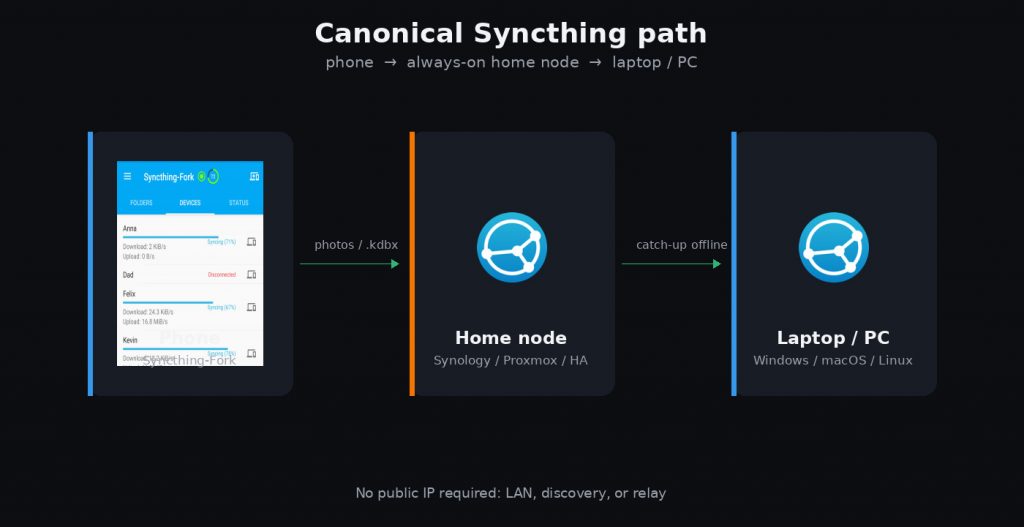
A separate server is optional. A phone and a laptop are enough: as soon as both are online and can reach each other (same Wi‑Fi / LAN, or via discovery and relay), files catch up. If the other device was offline when you edited something, it picks up the changes the next time it appears on the network.
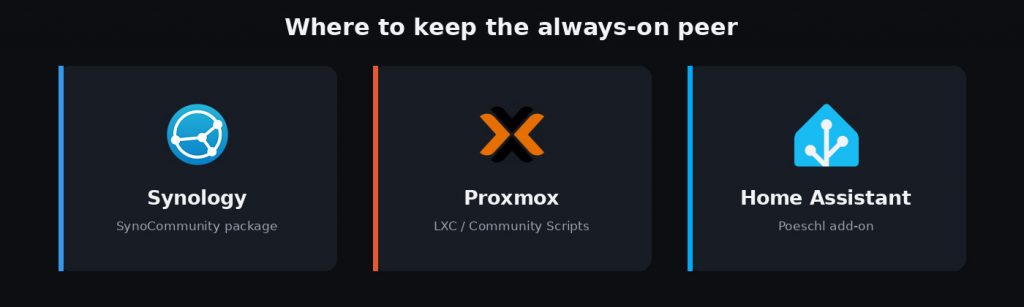
An always-on home node (Synology, Proxmox, Home Assistant) is a convenient example, not a requirement. It simply stays online 24/7 so the phone and laptop do not need to be online at the same time — files meet on the server and then spread further.
What it is, in plain English
A shared folder lives on several machines at once. Drop a photo on the phone — a minute later it is on the NAS. Update KeePass on the laptop — the same file shows up on Android. No manual upload/download loop.
- No central cloud — files need not sit at a third-party provider.
- Encryption in transit — traffic between devices is protected.
- Manual trust — a new device joins only after you exchange Device IDs and confirm on both sides.
- Works from home — behind a normal router, without mandatory port forwarding.

Why ordinary people use it
- Phone photos to a server — without a cloud subscription.
- KeePassXC / KeePassDX — one .kdbx file on every device as a simple Vaultwarden alternative.
- Documents and projects across laptop, desktop, and server.
- An always-on home peer on Synology, Proxmox, or Home Assistant.
Who it may not suit
- You need a perfect iOS client that syncs quietly 24/7 in the background — iPhone is weaker than Android. Resilio or manually opening Synctrain/Möbius may fit better.
- You need sharing individual password entries and user invites — Vaultwarden is smoother.
- You want a family “cloud disk” with a web file manager — look at Nextcloud.
Why a public IP is optional
For home sync a public address is usually unnecessary. Devices find each other like this:
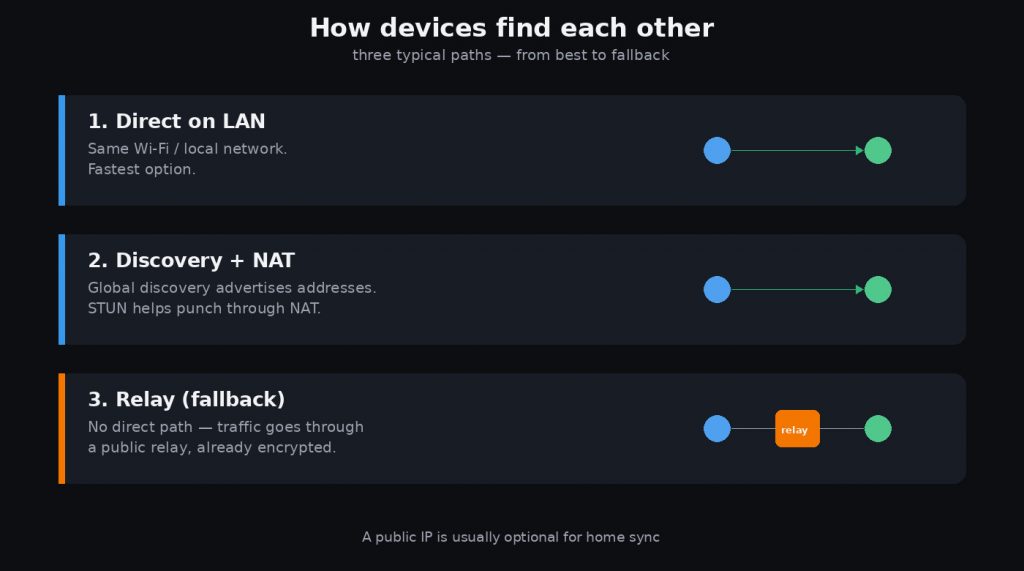
Forwarding port 22000 helps direct connections, but it is optional. For remote access to smart-home web UIs see CloudPub and OpenZiti; file sync often needs neither.
Compared with Resilio Sync
Both sync folders over P2P without requiring a public IP. The differences are license, price, and client polish.
| Criterion | Syncthing | Resilio Sync |
|---|---|---|
| License | Open source | Proprietary |
| Cost | Free | Free tier + paid Pro |
| Clients | Web GUI + community; third-party on iOS | Native apps, including polished iOS |
| Homelab | Very common | Available, often vendor packages |
| Best fit | Open source, no subscription | Turnkey UX, OK paying for Pro |
Resilio is easier for a family on iPhone that wants a native app. Syncthing is a better fit for open source, NAS/Proxmox/HA, and zero subscription. If you need per-entry password sharing, look at Vaultwarden.
Where to install it
Computers
Everything from the official downloads page:
- Windows — Syncthing Windows Setup or SyncTrayzor v2.
- macOS — syncthing-macos or the base binary on the same page.
- Linux — distro packages or apt.syncthing.net.
Android
The official Android client stopped updates in late 2024. Install the community app Syncthing-Fork from Google Play or F-Droid (see also F-Droid 2.0).

iPhone and iPad
There is no official client. In practice: Synctrain (open source, iOS 17+) or Möbius Sync / Pro. Background sync is weaker than on Android — an always-on home peer helps a lot.
Synology
Install the package from SynoCommunity in DSM Package Center. How to add the repository: SynoCommunity on Synology.

Proxmox
Fastest path: a ready LXC from Community Scripts. Manual option: light Debian LXC + apt.syncthing.net. Keep GUI port 8384 on LAN, VPN, or SSH only. Persist data on a disk that survives container recreation. Photos next to Jellyfin over SMB: mount SMB in an LXC.
Typical jobs: always-on peer; phone photos to storage; KeePass hub; sharing configs between VMs; overnight catch-up before backup; family media library at home and while traveling.
Home Assistant
Poeschl community add-on: repository and install in Home Assistant. Handy for config backups, photos into media, and a small always-on peer — not a multi-TB NAS replacement.
Basic setup in about fifteen minutes
- Install on the home node and on the phone (or PC).
- Open the web UI:
http://127.0.0.1:8384/(on the server — via LAN or SSH, not the public internet). - Actions → Show ID — exchange Device IDs and add devices on both sides.
- Add Folder — start with a small test folder, then photos or KeePass.
- Accept the folder on the other side and wait for Up to Date.


Useful settings
- Ignore Patterns — exclude caches,
.thumbnails,*.tmp,node_modules. - Wi‑Fi only on the phone — avoid burning mobile data.
- Untrusted / Encrypted — when a peer must not see folder contents in cleartext (see the docs).
- Do not expose port 8384 to the internet — LAN, VPN, or SSH, plus a GUI password.
KeePassXC and KeePassDX instead of Vaultwarden
One encrypted .kdbx file lives in a Syncthing folder. Open it in KeePassXC on the computer, KeePassDX on Android, and keep a third copy on the server. KeePassXC has solid browser extensions and built-in TOTP (2FA).
| Criterion | KeePass + Syncthing | Vaultwarden |
|---|---|---|
| Where data lives | .kdbx on your devices | Server + Bitwarden clients |
| Public IP | Not required | Usually needs HTTPS and reachability |
| Browser extensions | KeePassXC Browser | Bitwarden |
| 2FA / TOTP | Yes | Yes |
| Sharing individual entries | Weaker | Stronger (orgs, invites) |
First-time checklist:
- A dedicated folder only for the database (and keyfile, if you use one).
- Strong master password; preferably do not keep the keyfile unprotected in the same synced folder.
- Open the database from that folder path in KeePassXC / KeePassDX.
- Parallel edits on two devices often work fine; rarely you will see a
.sync-conflictfile. - Optionally enable File Versioning on the server for easier rollback.
- You do not need to close the database manually — clients lock on timeout or exit.
Phone photos to the server
- In Syncthing-Fork, add
DCIM/Camera(or the albums you want). - On the NAS / Proxmox / HA, create the same folder, e.g.
/data/photos/phone. - On the phone, Send Only is often best; on the server — Receive Only or two-way sync.
- Limit sync to Wi‑Fi.
- In Ignore Patterns add
.thumbnails,*.tmp, and camera junk.
You get a home photo archive without a mandatory cloud subscription and without exposing the server to the internet just to upload shots.
Other solid uses
- Configs and scripts across work machines.
- Offline copies of important PDFs and scans on the phone for travel.
- A family media catalog on home Wi‑Fi, with catch-up via relay while traveling.
- A “warm” laptop backup to a home disk while you are home.
Common mistakes
- Adding a device on one side only — the link must be mutual.
- Syncing a whole disk — start with narrow folders.
- Skipping Ignore Patterns — caches inflate the index.
- Exposing GUI 8384 to the internet — LAN, VPN, or SSH only.
- Expecting miracles from iOS — background sync is weaker there.
What to do today
- Install Syncthing on at least two devices (for example phone and PC). A home server is optional.
- Install the client on phone and PC, exchange Device IDs.
- Make a test folder, then add photos or KeePass.
- Optionally turn on file versioning on the server.
Useful links
- Desktop downloads
- Syncthing-Fork on Google Play · F-Droid
- Synctrain · Möbius Sync
- Synology package
- Proxmox script
- Home Assistant add-on
FAQ
Do I need a public IP?
Usually no. Syncthing finds devices on the LAN, via discovery, and through public relays when needed.
How is it different from Google Drive and Nextcloud?
There is no single server in the middle. Files move between your devices. Drive and Nextcloud are centralized services with their own storage.
How is it different from Resilio Sync?
Similar job. Syncthing is open source and free; Resilio is proprietary, with a free tier and paid Pro, but more native clients — especially on iOS.
Can I sync KeePass?
Yes: a shared folder with the .kdbx on PC, phone, and server. Parallel edits usually work fine; File Versioning on the server is optional.
Does it replace Vaultwarden?
For a single password file, often yes. KeePassXC has good extensions and TOTP. Vaultwarden is better for orgs and sharing individual entries.
Is there an iPhone client?
No official one. In practice Synctrain or Möbius Sync. On Android use Syncthing-Fork.
How do I install it on Synology?
Via the SynoCommunity repository in Package Center. More detail in our SynoCommunity article.
Is it safe?
Connections are encrypted; new devices must be approved manually. Do not add strangers’ IDs or expose the web GUI to the internet.
What about file conflicts?
You will get a .sync-conflict copy. Compare and keep the right one. For password databases this is rare.
Related reading
- SynoCommunity on Synology
- F-Droid 2.0
- CloudPub for Home Assistant
- SMB in a Proxmox LXC
- Services: self-hosted on a VPS
Short version: Syncthing keeps the same folders on phone, PC, and home server without a cloud subscription and without requiring a public IP. If devices are rarely online at the same time, an always-on home node is handy; without it, sync still works whenever both devices are reachable. Questions about a concrete setup — leave a comment.
No email, no trackers — just the update feed.