- macOS Tahoe on AMD: who this VMware guide is for
- Downloads for macOS Tahoe on AMD
- Required
- macOS image: ISO or ready VMDK
- Optional / not for AMD
- Direct URLs (checklist)
- What you need for macOS Tahoe on AMD
- Host preparation for macOS Tahoe on AMD
- Creating the virtual machine for macOS Tahoe on AMD
- Option A — OC4VM template (preferred)
- Option B — new VM by hand
- OC4VM AMD: critical hardware settings
- CPUs (AMD)
- Memory
- Boot OC4VM (USB OpenCore)
- Installing macOS
- Ready VMDK
- Clean install from ISO
- After first login
- VMware Tools
- Fewer artifacts and a smoother UI
- Updates
- Common problems with macOS Tahoe on AMD
- Apple ID VMware AMD: spoof + cloak (OC4VM)
- Where to run what
- Host prep and spoof iMac19,2
- Cloak in the guest (macOS)
- Network: no Ethernet after host reboot
- Signing into Apple ID
- Apple ID checklist
- Rollback
- What not to do
- Working profile for macOS Tahoe on AMD (Ryzen 7 7700, 32 GB RAM)
- Checklist: install macOS Tahoe VMware
- Bottom line: install macOS Tahoe VMware on AMD
This macOS Tahoe on AMD guide for a regular AMD Ryzen PC is not a “click Next in the wizard” job. You need three pieces: VMware Workstation 25H2/26, the Unlocker 4 patch (so Apple macOS appears in the guest OS list), and the OC4VM loader from the AMD folder. Without the last one, Intel/Apple ID Fix Special Edition paths on Ryzen usually end in a black screen or a panic.
Below is a full macOS Tahoe on AMD working path: what to download, how to prepare the host, and how to build the VM.
It also covers AMD CPU topologies that stay stable, install from ISO or a ready VMDK, VMware Tools, and common failures.
Verified on Ryzen 7 7700, ~32 GB RAM, Workstation 26, OC4VM 3.0.1 AMD, TechRechard VMDK torrent (Beta 1; ISO download hung for the author). VirtualBox was a dead end on this route — Workstation + OC4VM AMD is more reliable.
App Store / Apple ID on AMD are often flaky without spoof/cloak; with OC4VM (iMac19,2 + cloak) Apple ID sign-in can work in practice. Major macOS updates can break boot — take a snapshot before updating. If the host already runs Linux such as CachyOS with a local chat setup, this VM can sit beside it — as long as RAM is enough.
Important: under Apple’s license agreement, macOS is intended for installation and use on Apple-branded computers. Running it in a VM on an AMD PC formally does not meet that condition — this article describes a technical setup for learning and your own development work. It is not a call to violate the EULA and not a redistribution of Apple software. Obtain images and installers at your own risk and in line with the license. The author is not responsible for the consequences. On AMD, do not install Apple ID Fix Special Edition — that is Intel-only.
macOS Tahoe on AMD: who this VMware guide is for
Worth it if you need a guest macOS on an AMD host: build/test for Apple, Xcode without buying a MacBook “for one project,” or just to see how Tahoe behaves in a VM. Do not expect macOS Tahoe on AMD to feel “like on a Mac”: graphics without 3D acceleration, App Store and Apple ID on AMD are often picky without spoof/cloak, and large updates can break boot — so a snapshot before updating is mandatory.
Roles in short:
- VMware Workstation — the hypervisor that runs the VM;
- Unlocker — unlocks the Apple macOS guest option in the wizard;
- OC4VM (vmware/amd) — OpenCore that makes guest macOS accept “reasonable” hardware;
- Tahoe ISO or VMDK — clean install or a fast path into a ready system;
- darwin.iso — VMware Tools: mouse, resolution, usable UI.
Downloads for macOS Tahoe on AMD
Collect everything before creating the VM — otherwise you jump between tabs with a half-built machine. TechRechard links (GDrive/Mega) drift; prefer article pages and fresh mirrors. GitHub (Unlocker, OC4VM) and Broadcom are usually more stable.
Required
| What | Link | Note |
|---|---|---|
| VMware Workstation Pro | Broadcom downloads · product page | Broadcom account required. Take 25H2 / 26.x. Linux — .bundle, Windows — .exe |
| Unlocker 4 | releases · v4.2.8 | Windows: unlocker428.zip · Linux: unlocker428.tgz |
| OC4VM 3.0.1 | releases · 3.0.1 · Wiki | File oc4vm-3.0.1.zip. For AMD — folder vmware/amd/ |
| darwin.iso (VMware Tools) | darwin.iso · directory | Also in OC4VM: iso/darwin.iso and in the Unlocker archive |
macOS image: ISO or ready VMDK
Two sane paths. ISO — clean install: slower, but you control the disk and drag less junk from a public image. VMDK — fast start: unpack, attach as SATA, boot via OC4VM. On public TechRechard images the password is often 0904 — check the README in the archive.
What worked in this write-up. The install used the torrent Download macOS Tahoe VMDK Torrent (Beta 1) from Tahoe VMDK on TechRechard. The ISO route did not finish here — the download hung halfway — so the working desktop came from the ready VMDK path.
| Option | Link | When to use |
|---|---|---|
| Tahoe ISO (clean install) | Tahoe ISO · all ISOs | Better long-term; ISO download hung for the author |
| Ready VMDK (fast start) | Tahoe VMDK · all VMDKs | Used in this guide (Beta 1 torrent); password often 0904 |
| Official Apple installer | download macOS · createinstallmedia | Only if you already have a Mac; then convert to ISO yourself |
Optional / not for AMD
Generic “Tahoe + VMware” guides help as UI walkthroughs, but on Ryzen without OC4VM AMD the steps often do not line up. Separately: Apple ID Fix Special Edition is not for AMD.
| What | Link | Note |
|---|---|---|
| TechRechard ISO + VMware guide | TechRechard article | General scheme; on AMD you still need OC4VM |
| Apple ID Fix Special Edition | TechRechard pages | Do not use on AMD — Intel only |
Direct URLs (checklist)
VMware:     https://support.broadcom.com/group/ecx/productdownloads?subfamily=VMware%20Workstation%20Pro
Unlocker:   https://github.com/DrDonk/unlocker/releases/latest
OC4VM:      https://github.com/DrDonk/OC4VM/releases/latest
darwin.iso: https://packages-prod.broadcom.com/tools/frozen/darwin/darwin.iso
Tahoe ISO:  https://techrechard.com/download-macos-tahoe-iso-vmware-virtualbox/
Tahoe VMDK: https://techrechard.com/download-macos-tahoe-vmdk-virtualbox-vmware/
What you need for macOS Tahoe on AMD
Host hardware: from 16 GB RAM (32 is better), 80–100 GB free for the VM and images. Give the guest 8–12 GB comfortably — under eight Tahoe already feels starved.
| Component | Why |
|---|---|
| VMware Workstation Pro 25H2 / 26.x | Hypervisor |
| Unlocker 4 | Apple macOS option in the VM wizard |
OC4VM (vmware/amd) | OpenCore for AMD |
| Tahoe ISO or VMDK | Install / ready system |
| darwin.iso | Mouse, resolution, speed |
| Host RAM | from 16 GB (32 GB better) |
| Disk space | from 80–100 GB |
Host preparation for macOS Tahoe on AMD
Before you build macOS Tahoe on AMD, Start with BIOS and the hypervisor patch — otherwise Apple macOS never appears in the wizard, and a VM without virtualization is painful. Apply Unlocker with VMware fully closed: otherwise the patch may not stick or partially roll back.
- In BIOS enable SVM / AMD-V.
- Install VMware Workstation (link above).
- Download Unlocker, quit VMware, apply the patch: Windows —
windowsunlock.exeas Administrator; Linux —sudo ./linux/unlock. - Download OC4VM 3.0.1 and unpack. You need the
vmware/amd/folder — not intel and not a random OpenCore from someone else’s guide. - Download the Tahoe ISO or VMDK.
Copy the AMD template into a separate folder, e.g. ~/vmware/macOS Tahoe/. That makes full-folder snapshot copies easier and keeps opencore.vmdk distinct from the system disk.
Creating the virtual machine for macOS Tahoe on AMD
For macOS Tahoe on AMD the preferred path — the ready OC4VM template: OpenCore, typical .vmx lines, and disables like SMC/VT-d that break AMD boot are already laid out. A hand-built VM from the wizard only makes sense if the template will not open or you want full control — but you will still have to add the same keys by hand.
Option A — OC4VM template (preferred)
- Copy the contents of
vmware/amd/into the VM folder. - Open the
.vmxin VMware → Open a Virtual Machine. - Attach the system disk / ISO (below).
Option B — new VM by hand
- Create a New Virtual Machine → Custom.
- Compatibility: Workstation 25H2 / 26 (virtual HW 22).
- I will install the operating system later.
- Guest OS: Apple macOS → macOS 26.
- If Apple is missing — Unlocker was not applied, or VMware was open during the patch. Quit Workstation and run Unlocker again.
Template and spoof docs: OC4VM Wiki.
OC4VM AMD: critical hardware settings
With OC4VM AMD the usual failure is not “Tahoe version” but CPU topology and leaving SMC / nested VT-x on. One socket with 8 cores looks nice in the UI and reliably yields panic initproc failed. Working schemes — fewer cores per socket, or two sockets of four.
CPUs (AMD)
| Layout | Result |
|---|---|
| 1 × 4 | Stable minimum |
| 2 × 4 = 8 | Often works |
| 1 × 8 | May panic with initproc failed |
For Ryzen 7 7700 (~32 GB RAM): 2 × 4 = 8. Nested VT-x / performance counters — off. Do not chase “all host cores” on the first VM.
Memory
Minimum 8 GB for the guest, comfortable 12 GB. On a 32 GB host, twelve for the guest is a fair balance — room left for the host and a browser with ten guide tabs.
Boot OC4VM (USB OpenCore)
OpenCore must boot as a USB disk via usb_xhci, not “just a CD.” The .vmx should look roughly like this:
usb_xhci.present = "TRUE"
usb_xhci:0.present = "TRUE"
usb_xhci:0.deviceType = "disk"
usb_xhci:0.fileName = "opencore.vmdk"
usb_xhci:0.readonly = "FALSE"

smc.present = "FALSE"
ethernet0.virtualDev = "e1000e"
vvtd.enable = "FALSE"
vhv.enable = "FALSE"
vpmc.enable = "FALSE"
firmware = "efi"
uefi.secureBoot.enabled = "FALSE"
guestOS = "darwin25-64"
virtualHW.version = "22"
opencore.vmdk plus opencore.iso nearby — from the OC4VM AMD package. System disk (your Tahoe VMDK or an empty disk for install):
sata0:0.fileName = "macos.vmdk" # your Tahoe.vmdkDisplay: turn 3D acceleration off at first — otherwise you are more likely to hit artifacts and hangs before Tools are installed.
Note on guestOS: darwin26-64 in Workstation 26 UI often shows as “macOS 27” and spams warnings. Prefer darwin25-64 (“macOS 26”) with virtualHW 22.
Installing macOS
To install macOS Tahoe on AMD you have two scenarios. Two scenarios to install macOS Tahoe VMware. VMDK saves an hour or two of installer time; ISO gives you a “your own” system from scratch. In both cases boot always through the OpenCore menu: system volume or Install macOS Tahoe.
Ready VMDK
- Download the Tahoe VMDK (in this setup — the Download macOS Tahoe VMDK Torrent (Beta 1) torrent from TechRechard) and unpack it.
- Attach it as a SATA disk.
- Boot via OC4VM → choose the system volume.
- Password on public TechRechard images is often
0904(check the README in the archive).
Clean install from ISO
- Download the Tahoe ISO.
- CD/DVD → that ISO.
- In OpenCore → Install macOS Tahoe.
- Disk Utility → erase only the system disk (APFS, GUID). Do not touch the OpenCore volume — or you lose the bootloader.
- Install → after reboots pick the installer / disk again in the OpenCore menu (normal, not “broken”).
- If Setup Assistant hangs on networking — in VMware use Disconnect Network Adapter, finish the wizard offline, reconnect the network later.
After first login
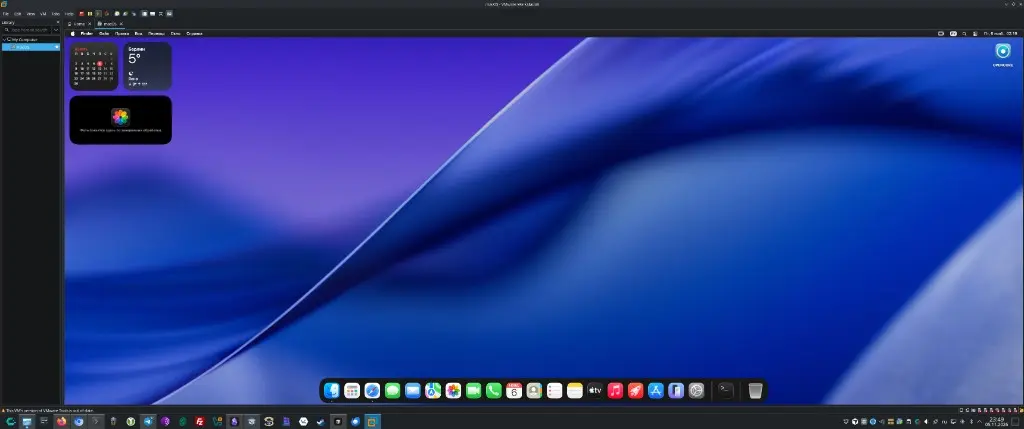
With macOS Tahoe on AMD, day one in the guest is not the App Store — it is VMware Tools and a snapshot. Without Tools the cursor and resolution drift; without a snapshot any update or spoof experiment becomes a reinstall.
VMware Tools
- Use
darwin.iso(Broadcom oriso/darwin.isofrom OC4VM). - VM → Settings → CD/DVD → point to the ISO → Connect.
- In macOS install the package → allow it under Privacy & Security → reboot.
Gatekeeper often blocks the .pkg: Control-click → Open, or Security → Open Anyway (usually within an hour after the refusal). If the package landed in Trash — move it out first.
Fewer artifacts and a smoother UI
Without a real GPU, Tahoe’s “glassy” UI (Liquid Glass), transparency, and motion chew FPS and smear window corners. Turn the extras off early.
1. Liquid Glass via OC4VM — on the OPENCORE volume, in macOS Terminal:
cd /Volumes/OPENCORE/OC4VM/tools
./solarium.zsh off
sudo reboot
After reboot, check:
./solarium.zsh status
# should report off / disabled
Look at window corners again — artifacts are usually much milder.
2. System Settings → Accessibility → Display: enable Reduce transparency.
3. System Settings → Accessibility → Motion: enable Reduce motion.
After these three steps the guest feels smoother, windows are more readable, and there is less “swimming” UI on an already modest virtual display.
Updates
Before any update — a Snapshot or a full clone of the VM folder. Big jumps like 26.0 → 26.7.x sometimes speed the system up and sometimes break OpenCore boot. After a good patch, turn auto-updates off: macOS loves offering “one more important update” at the worst time.
Common problems with macOS Tahoe on AMD
Most “won’t boot / black screen / panic” cases on AMD boil down to three things: wrong OpenCore, bad CPU topology, or a forgotten smc.present. An App Store “unknown error” on Ryzen without spoof/cloak is often normal — not proof you misconfigured the .vmx.
| Symptom | What to do |
|---|---|
| Black screen / reboot loop | Check OC4VM USB boot, smc.present = FALSE, CPU topology |
Panic initproc failed | Not 1×8; try 1×4 or 2×4 |
| Warning “macOS 27 not supported” | guestOS = "darwin25-64", HW version 22 |
| Garbled screen while booting | Verbose in OpenCore / no Tools — wait or install Tools |
| App Store: unknown error | Common on AMD without spoof/cloak; do not install Intel-only Apple ID Fix; see spoof + cloak below |
| Setup Assistant hangs | Disconnect the Network Adapter in VMware |
| Gatekeeper blocks .pkg | Control-click → Open; or Security → Open Anyway; restore the pkg from Trash first if needed |
Apple ID VMware AMD: spoof + cloak (OC4VM)
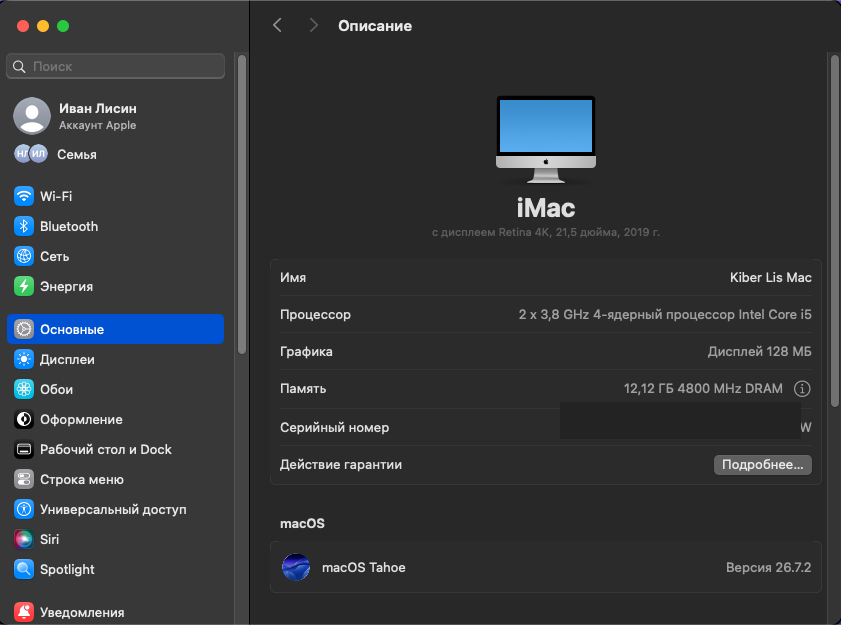
Apple ID VMware AMD note: a “green” Tahoe VM alone does not mean Apple ID will let you in. On AMD you need two steps: spoof on the host (SMBIOS like a 2019 iMac in the .vmx) and cloak in the guest (hide the VM fingerprint). Verified install macOS Tahoe VMware: Workstation 26 + OC4VM 3.0.1 AMD + macOS Tahoe on Ryzen 7 7700 — after spoof + cloak, Apple ID sign-in worked.
Important: no guarantees. On AMD, Apple services can still break after an update. Do not use TechRechard Apple ID Fix Special Edition — Intel only. Before any edits — a Snapshot.
Roles in short:
- Spoof on the Linux/Windows host — writes
iMac19,2, serial, MLB/ROM into the.vmx; - Cloak inside macOS —
cloak.zsh on(RestrictEvents / NVRAM:novmmand friends); - Network — NAT, no VPN while signing in, correct date/time.
Where to run what
| Where | What |
|---|---|
| Host (Linux/Windows terminal) | spoof the .vmx, fix vmnet, Snapshot |
| macOS inside the VM (Terminal) | sysinfo.zsh, cloak.zsh, Apple ID sign-in |
Paths like /Volumes/OPENCORE/... are only for macOS Terminal, not the host. Otherwise you get “No such file” and waste an evening.
Host prep and spoof iMac19,2
- VM fully powered off (not Suspend).
- OC4VM 3.0.1 available: releases —
tools/linux/spoof.sh,macserial,vmxtool. - VMware Snapshot “before Apple ID”.
# path to your .vmx
VMX="/path/to/macOS.vmx"

cd /path/to/oc4vm/tools/linux
chmod +x spoof.sh macserial vmxtool
./spoof.sh "$VMX"
The .vmx should gain lines roughly like:
__Apple_Model_Start__ = "iMac 2019"
board-id = "Mac-63001698E7A34814"
hw.model = "iMac19,2"
serialNumber = "C02........."
efi.nvram.var.MLB = "........."
efi.nvram.var.ROM = "%..%..%.."
__Apple_Model_End__ = "iMac 2019"
And still critical for AMD:
smc.present = "FALSE"
guestOS = "darwin25-64"
Docs: OC4VM Wiki — Spoofing A Real Mac.
Cloak in the guest (macOS)
- Start the VM and wait for the desktop.
- In Finder on the left you should see volume OPENCORE.
- Terminal (Applications → Utilities) → check the model:
cd /Volumes/OPENCORE/OC4VM/tools
chmod +x cloak.zsh sysinfo.zsh macserial
./sysinfo.zsh
Expected: Model iMac19,2, Serial like C02..., no invalid-serial warnings. Then enable VMM cloaking:
./cloak.zsh on
# NVRAM: revpatch=sbvmm,asset,novmm
sudo reboot
After macOS reboots, in Terminal again:
cd /Volumes/OPENCORE/OC4VM/tools
./cloak.zsh status
# should say: Cloaking is enabled
./sysinfo.zsh
Network: no Ethernet after host reboot
On Linux after a PC reboot, VMware modules often are not loaded. Symptom:
Could not connect 'Ethernet0' to virtual network '/dev/vmnet8'
Failed to connect virtual device 'Ethernet0'
On the host:
sudo modprobe vmmon
sudo modprobe vmnet
sudo vmware-networks --start
# or:
sudo systemctl start vmware-networks.service
sudo systemctl start vmware-usbarbitrator.service
ls -l /dev/vmmon /dev/vmnet8
Then in VMware restart the VM or use Removable Devices → Network Adapter → Connect. For Apple ID: guest network NAT, VPN off, date/time automatic.
Signing into Apple ID
- System Settings → Apple ID (preferred over App Store alone).
- Login / password, confirm 2FA from an iPhone or another Apple device.
- If needed, sign into the App Store with the same account.
If an old account sticks on “unknown error,” another or a new Apple ID sometimes helps. Not a rule and not a silver bullet.
Apple ID checklist
- Snapshot before changes
- VM powered off →
spoof.sh→.vmxhasiMac19,2 - In macOS:
sysinfo.zshshows iMac19,2 cloak.zsh on→ reboot →cloak.zsh status= enabled- NAT works (
/dev/vmnet8on the host if needed) - Sign in via System Settings → Apple ID
Rollback
In the guest, disable cloak:
cd /Volumes/OPENCORE/OC4VM/tools
./cloak.zsh off
sudo reboot
On the host (VM off) — restore a .vmx backup or revert the Snapshot:
cp -a macOS.vmx.bak-before-appleid-spoof macOS.vmxWhat not to do
- Do not run
cloak.zshor/Volumes/OPENCORE/...paths in a Linux terminal — macOS in the VM only. - Do not install TechRechard Apple ID Fix on AMD.
- Do not expect 100% iCloud / App Store stability on AMD: after major macOS or OC4VM updates it can break again — Snapshot + re-run cloak.
Working profile for macOS Tahoe on AMD (Ryzen 7 7700, 32 GB RAM)
The config that stayed stable in testing. Not dogma, but a solid starting point if you do not want to guess at every slider.
CPU:     2 sockets × 4 cores = 8
RAM:     12 GB
Boot:    OC4VM AMD (usb_xhci → opencore.vmdk)
SMC:     emulated by OpenCore (smc.present = FALSE)
NIC:     e1000e (after Tools you can try vmxnet3)
3D:      off
guestOS: darwin25-64
HW:      virtualHW.version = 22
Checklist: install macOS Tahoe VMware
Walk top to bottom before writing “it won’t start” in chat. These points cover most misses when you install macOS Tahoe VMware.
- VMware Workstation 25H2/26
- Unlocker 4.2.8+ applied with VMware closed
- OC4VM 3.0.1 → specifically
vmware/amd/ - Tahoe ISO or VMDK
darwin.isofor Tools- CPU 1×4 or 2×4, 8–12 GB guest RAM
- Install / login → Tools → Snapshot
- Optional:
solarium.zsh off+ reduce transparency and motion - Optional: macOS update only in a clone / after a snapshot
cloak.zsh on/ spoof — if you need Apple ID
Bottom line: install macOS Tahoe VMware on AMD
Bottom line for macOS Tahoe on AMD: the working formula is Workstation 25H2/26 + Unlocker + OC4VM AMD + sane CPU topology. Then install macOS Tahoe VMware via ISO or VMDK, Tools, snapshot. Need Apple ID — spoof iMac19,2 on the host and cloak.zsh on in the guest (see above). VirtualBox usually loses on this path; Workstation with OC4VM AMD reaches the desktop — and with a good cloak, Apple account sign-in too.
No email, no trackers — just the update feed.