- Paperless next to Nextcloud and Synology — complement or replace?
- How they differ in practice
- Who it is for
- What Paperless is not
- How a document flows through
- Demo: try it without installing
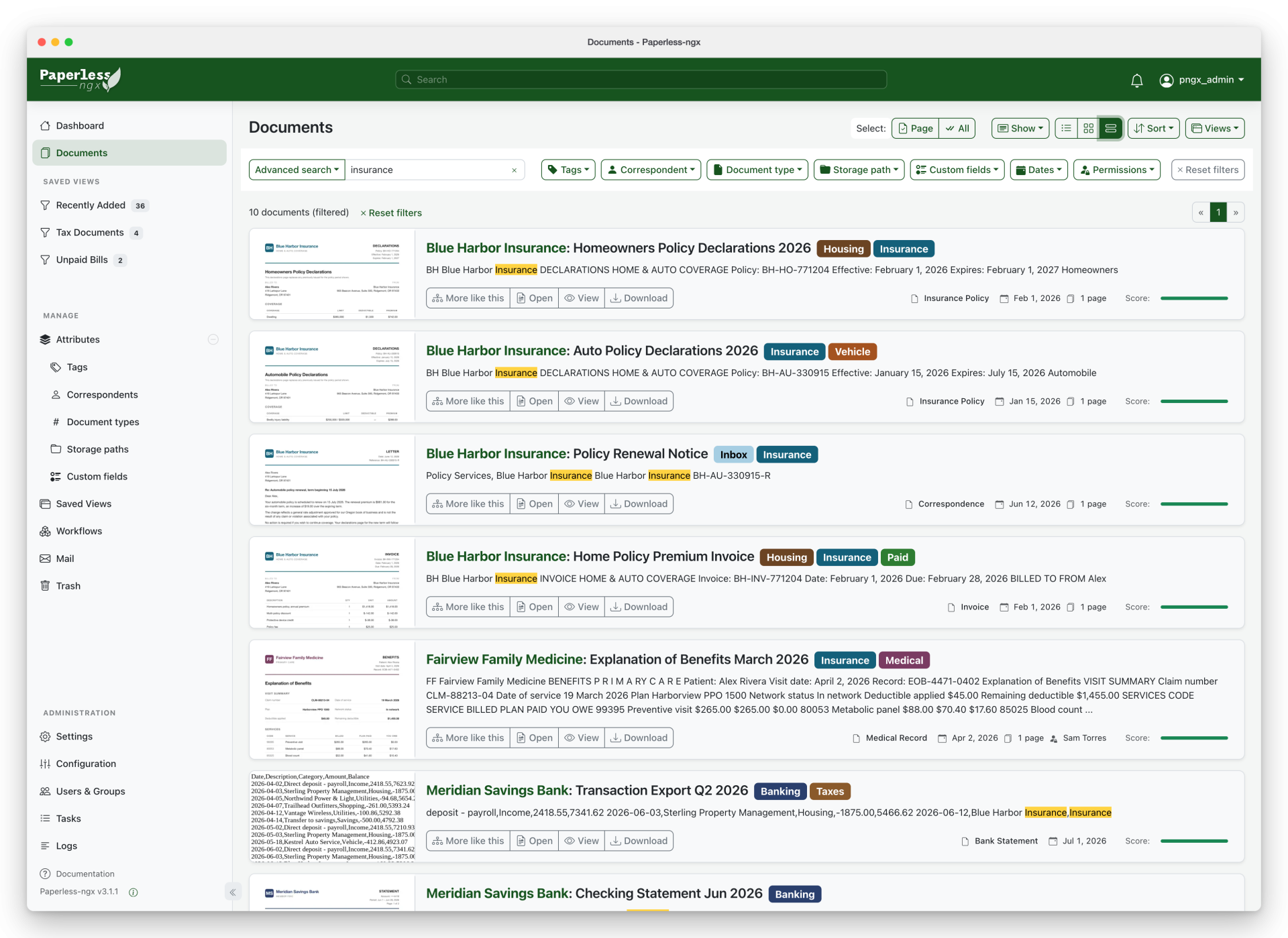
- Interface: what you will see
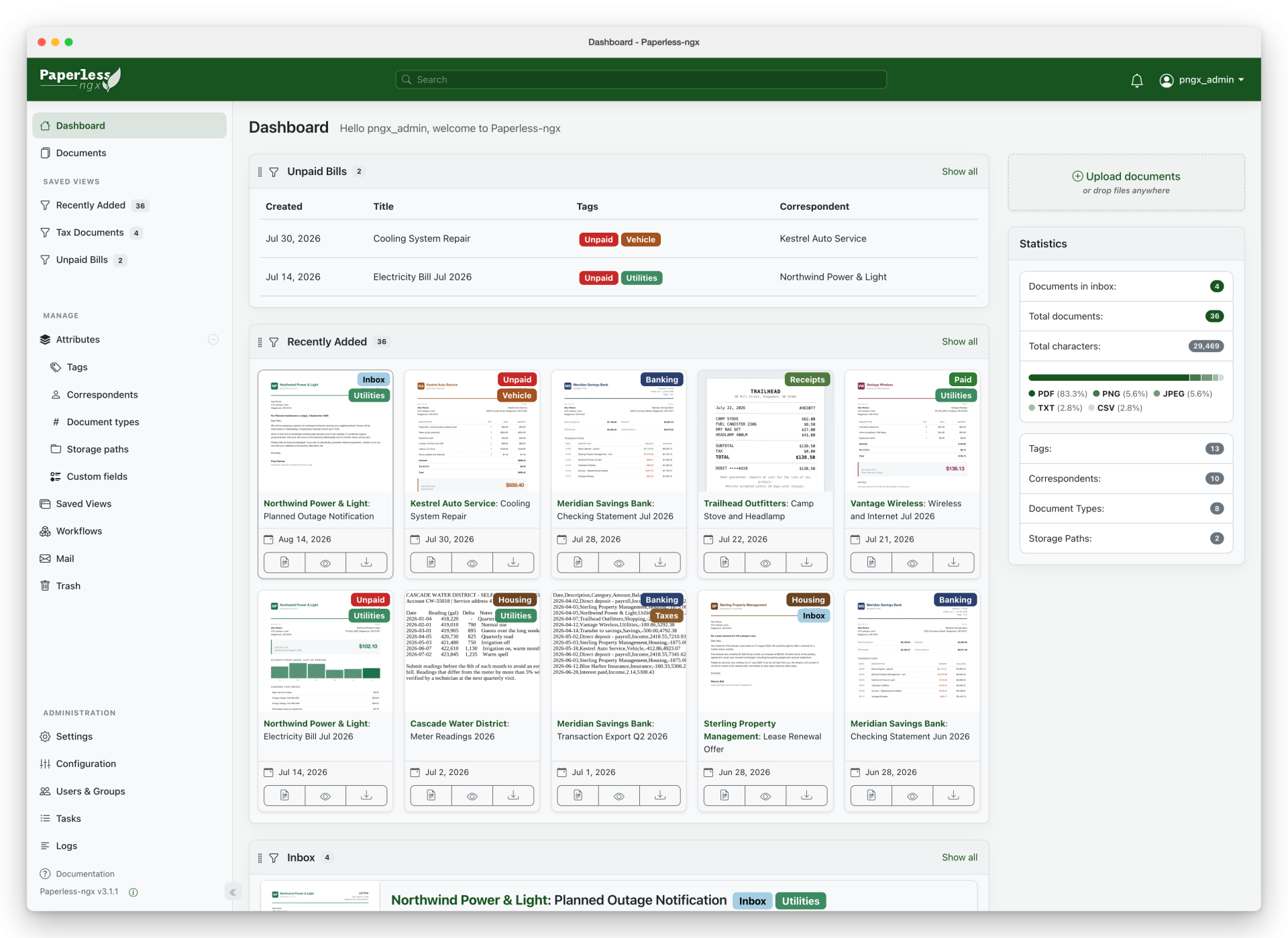
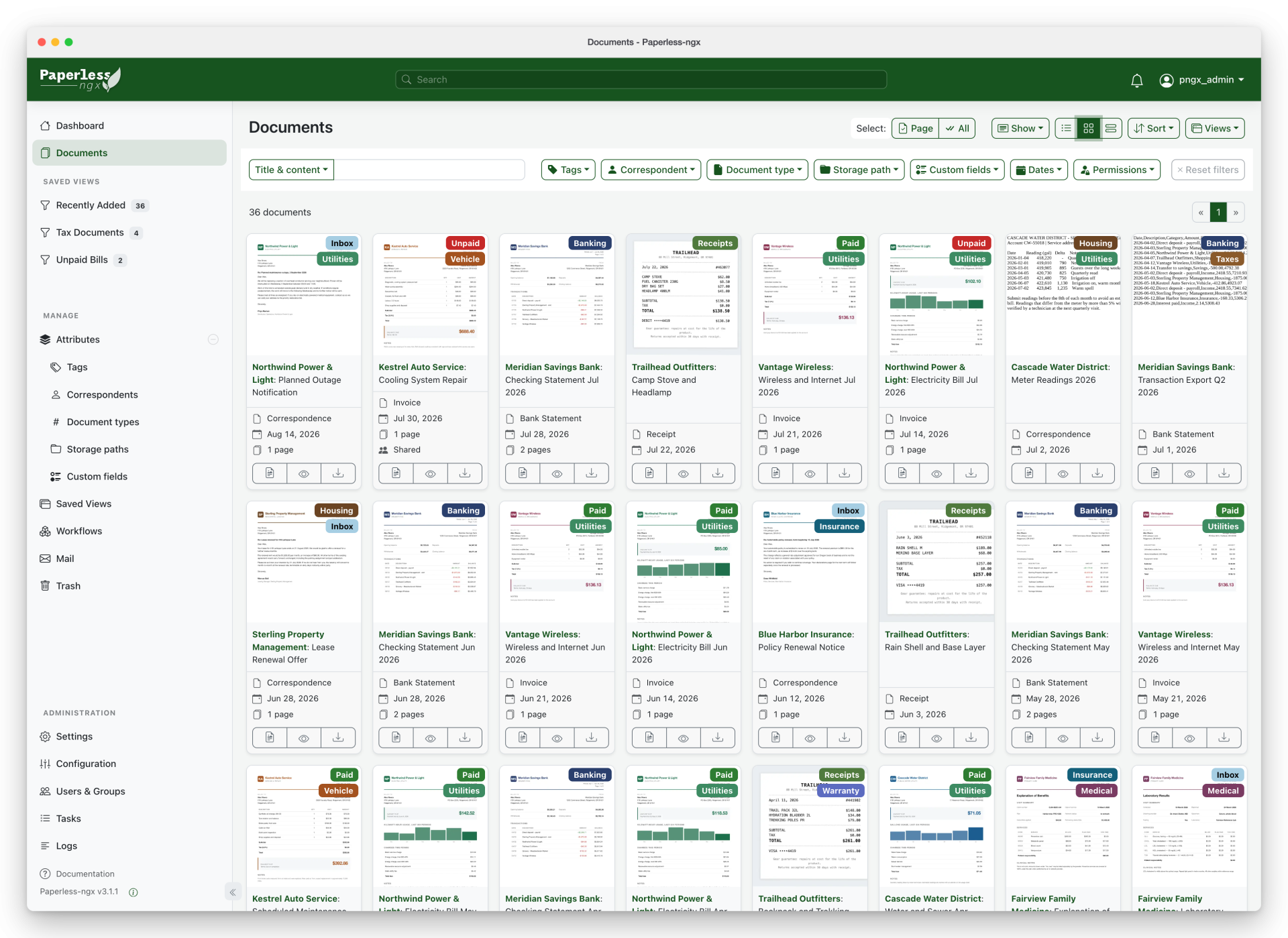
- Dashboard and list
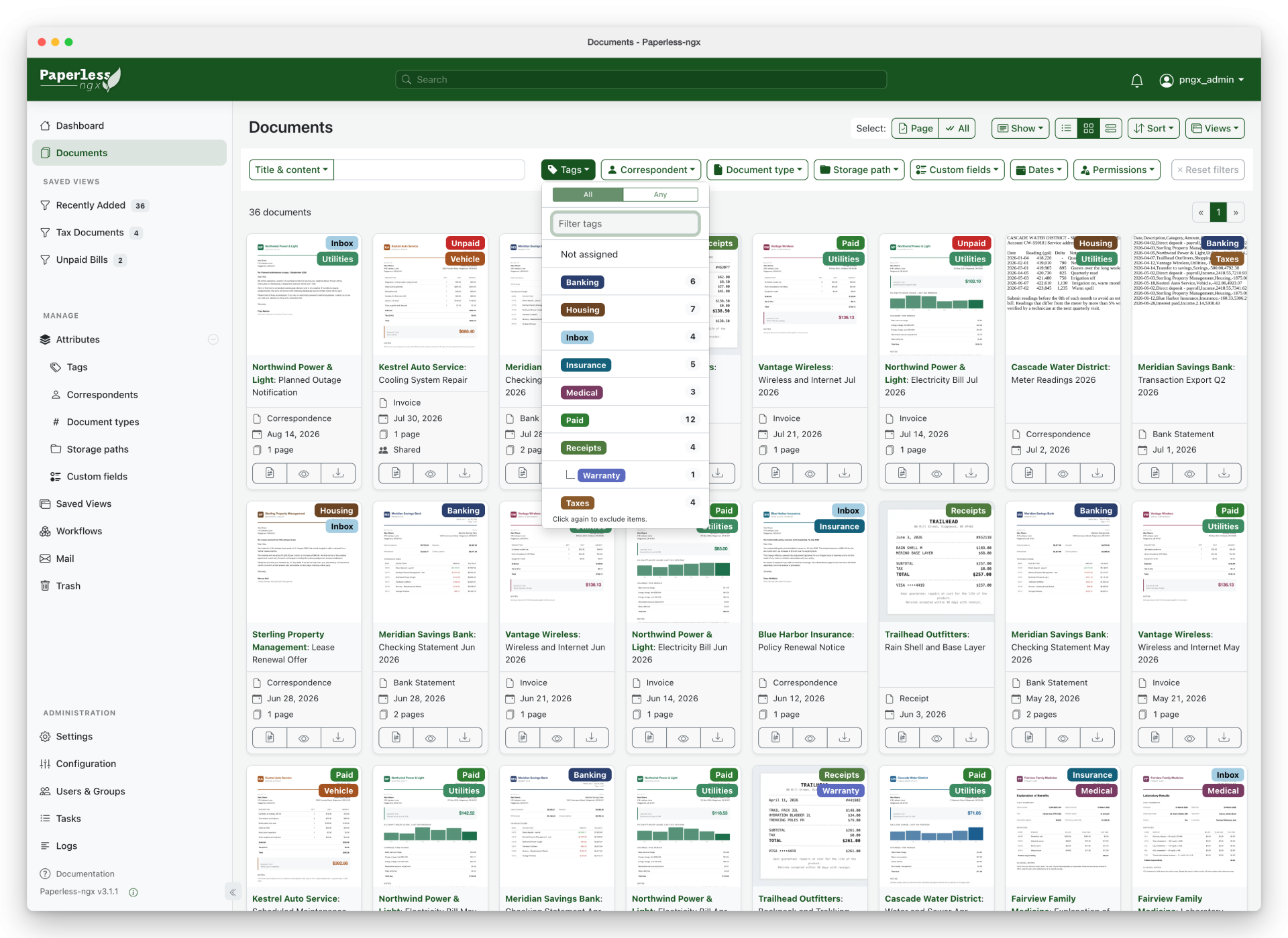
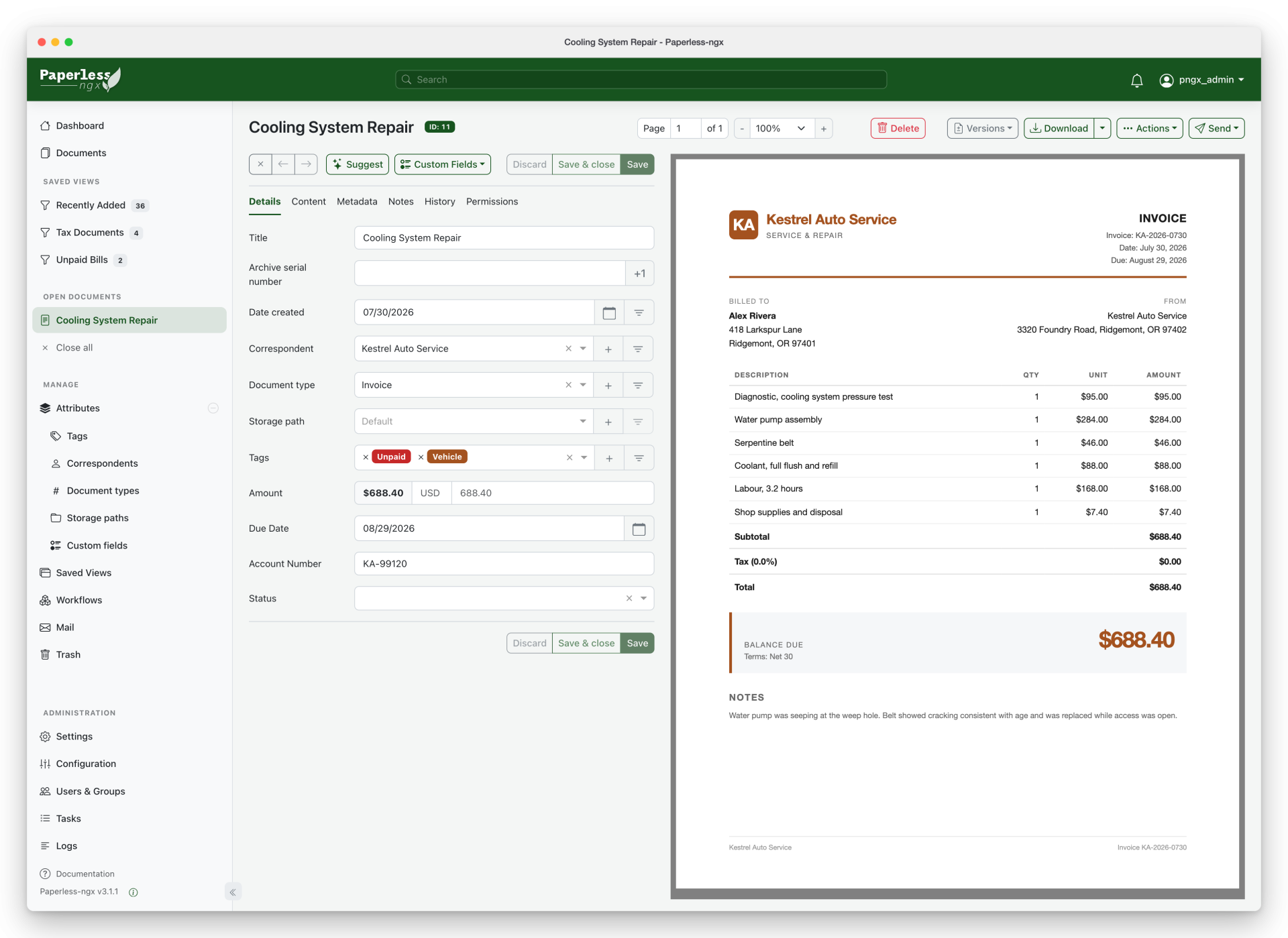
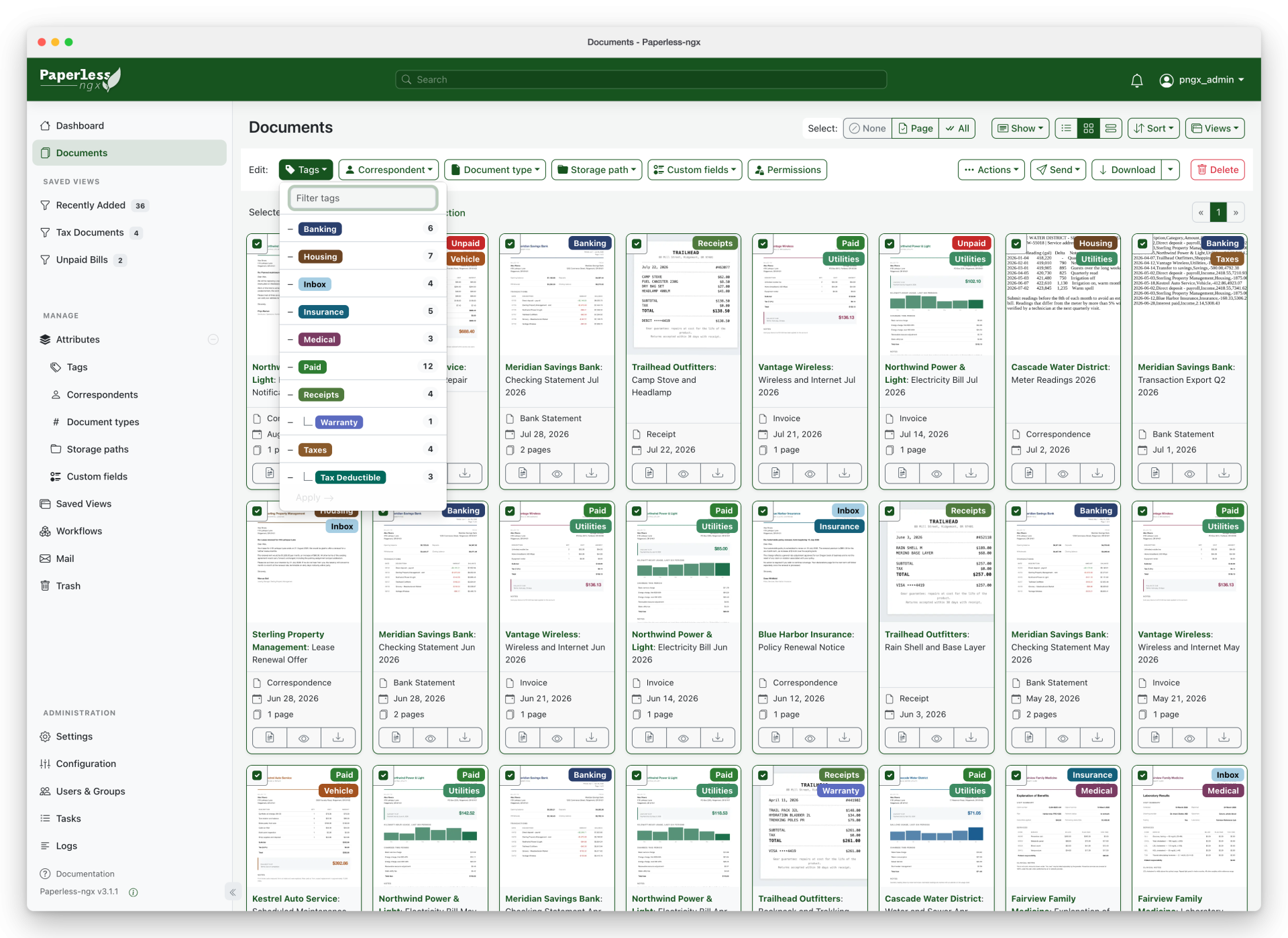
- Filters, search, editing
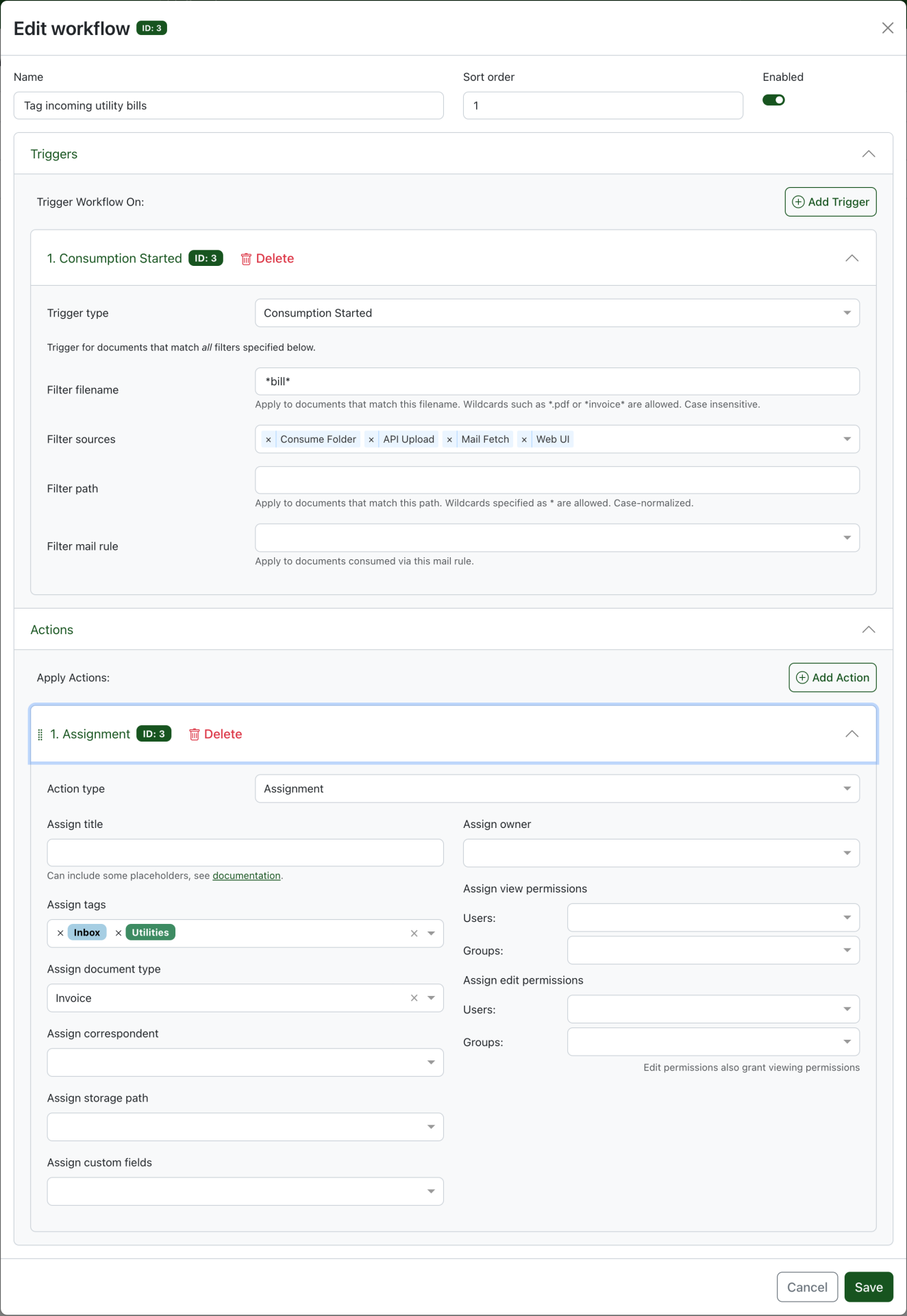
- Automation and mobile web
- Requirements and what to run alongside
- Install: quick path (official script)
- Install: Docker Compose by hand
- Minimal settings for a non-English archive
- The consume folder and Nextcloud
- Install on different platforms
- Linux VPS / home server
- Proxmox
- NAS (Synology, TrueNAS, Ugreen, and others)
- Windows and macOS
- Bare metal (no Docker)
- Kubernetes / Unraid / app stores
- Client apps
- Scanners and phone upload
- Local AI and Paperless-ngx
- Example: Ollama on the same machine
- Example: OpenAI-compatible local endpoint
- Honest limits
- Permissions, HTTPS, and backup
- Common failures
- How it fits with Nextcloud, Synology, and the rest
- Bottom line
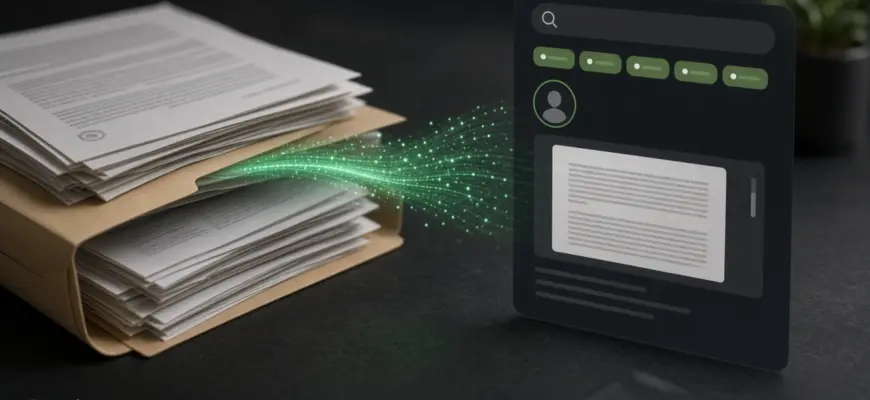
Paperless-ngx is a self-hosted archive for scans and PDFs. You drop in a contract, utility bill, medical form, or bank statement — it runs OCR, suggests tags and a correspondent, and lets you search by words inside the file, not only by names like scan_0042.pdf. The files stay on your disk.
In short: Nextcloud and Synology are “drive and services”, Immich is a photo timeline, and Paperless answers “where is that invoice / policy / lease?”. It does not replace your cloud — it takes the scan mess off it.
Below: how it sits next to Nextcloud or Synology, what it does day to day, the official demo (login demo/demo), Docker install, Android and iOS clients, OCR languages, and optional local AI.
Paperless next to Nextcloud and Synology — complement or replace?
Most of the time it complements them. Nextcloud or Synology DSM already cover files, sharing, backups, and sometimes photos and calendars. Paperless-ngx takes a narrow but painful job: a pile of scans and PDFs you cannot search quickly.
It replaces the habit of dumping receipts into Downloads and folders like Scans/2024/more_scans — not the whole cloud. On Synology you usually run Paperless in Docker next to Drive/Photos, not instead of DSM.
How they differ in practice
| Nextcloud / Synology | Paperless-ngx | |
|---|---|---|
| Role | Drive, sharing, services | Document filing cabinet with OCR |
| Unit | File and folder | Document: text, tags, correspondent, type |
| Search | By name, sometimes full text | By words inside scans and PDFs |
| Weak spot | “Find March’s utility bill” among a thousand scans | Not a general cloud or photo album |
A common setup: scan on your phone or drop a PDF into a Nextcloud/Synology folder → file lands in Paperless consume → OCR and tags. Working Word/sheets and “just files” stay in the cloud; the searchable truth for bills and contracts lives in Paperless.
Who it is for
- Home archive — utilities, taxes, medical paperwork, warranties, insurance. Snap a bill, find it a week later by “heating” or by the utility company.
- You already run a NAS or Nextcloud — put “PDFs I need to find later” in Paperless; keep drafts and the family drive where they are.
- Small office — contracts and invoices with correspondent and document type, without turning Google Drive into your only knowledge base.
- Not your case if you only need a shared drive, only photos (see Immich), or full accounting with ledgers — Paperless does not do that.
What Paperless is not
- Not SharePoint-class ECM for a whole corporation.
- Not an accounting suite: metadata and archive yes, bookkeeping no.
- Not a mail server: importing attachments is optional; running your own outbound SMTP from a home IP is usually a bad idea.
How a document flows through
In practice: you photograph or scan → the file hits the consume folder (or you upload via web/app) → Paperless runs OCR → the document shows up in Inbox with searchable text → you or rules/AI set tags, correspondent, and type. Original and archival PDF/A live under media on your disk.
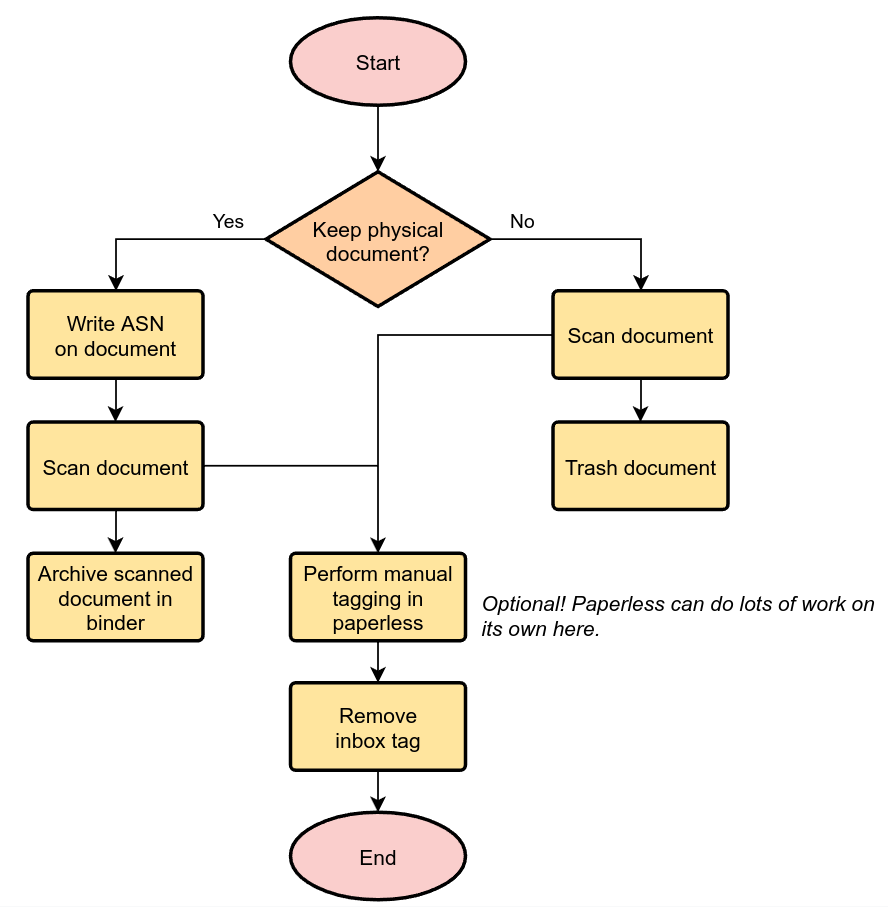
| Piece | Why it matters |
|---|---|
| Consume | Inbox folder: anything dropped here is picked up |
| OCR | Text from the image/scan so you can search by words |
| Tags / Correspondent / Type | Classification: “taxes”, “Acme LLC”, “contract” |
| Storage path | How files are laid out on disk |
| Workflows | Automation after upload |
| AI (optional) | Suggestions, chat on a document, similar docs — via Ollama or an OpenAI-compatible API |
Demo: try it without installing
Official demo: demo.paperless-ngx.com, login and password demo / demo (thanks to Fyra Stack). Content is reset periodically; do not upload passports, contracts, or any personal data there.
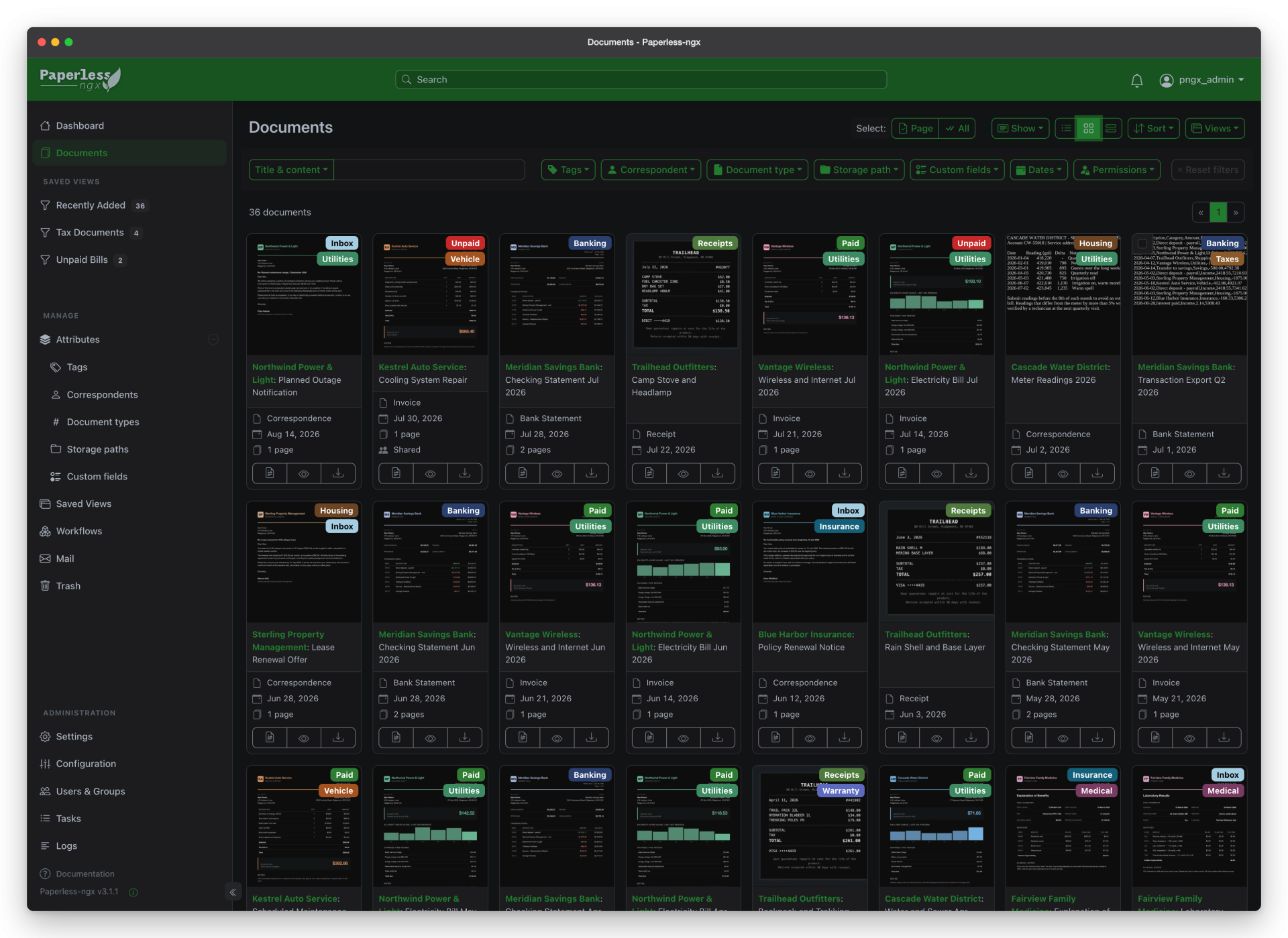
The demo is enough to learn the UI in about ten minutes: dashboard, filters, search, dark theme. For real documents, run your own instance.
Interface: what you will see
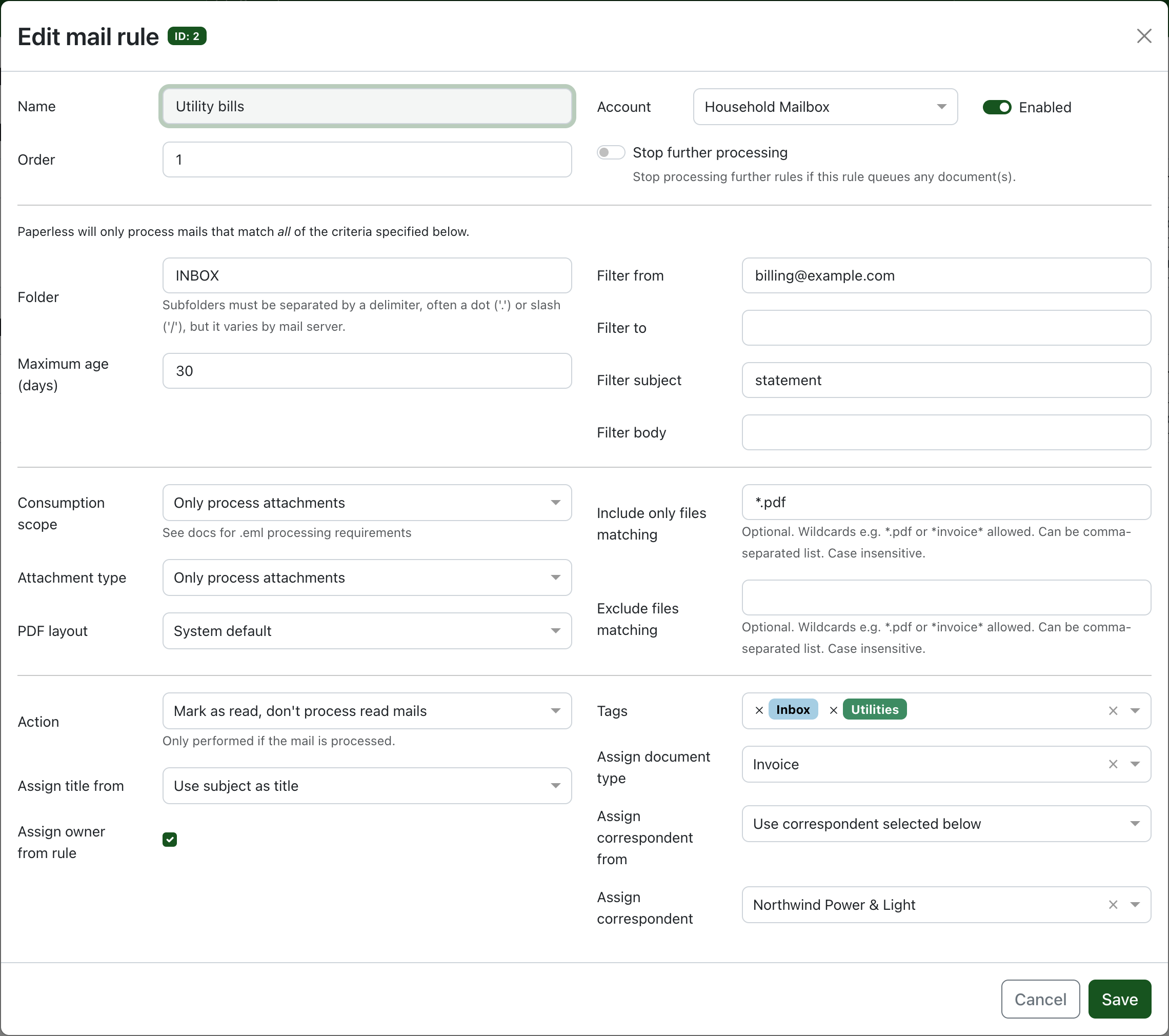
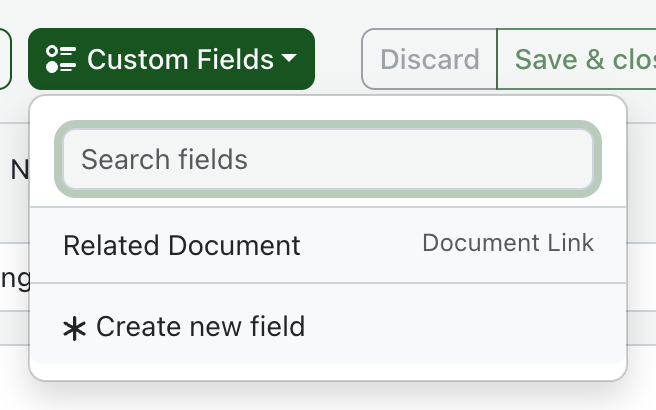
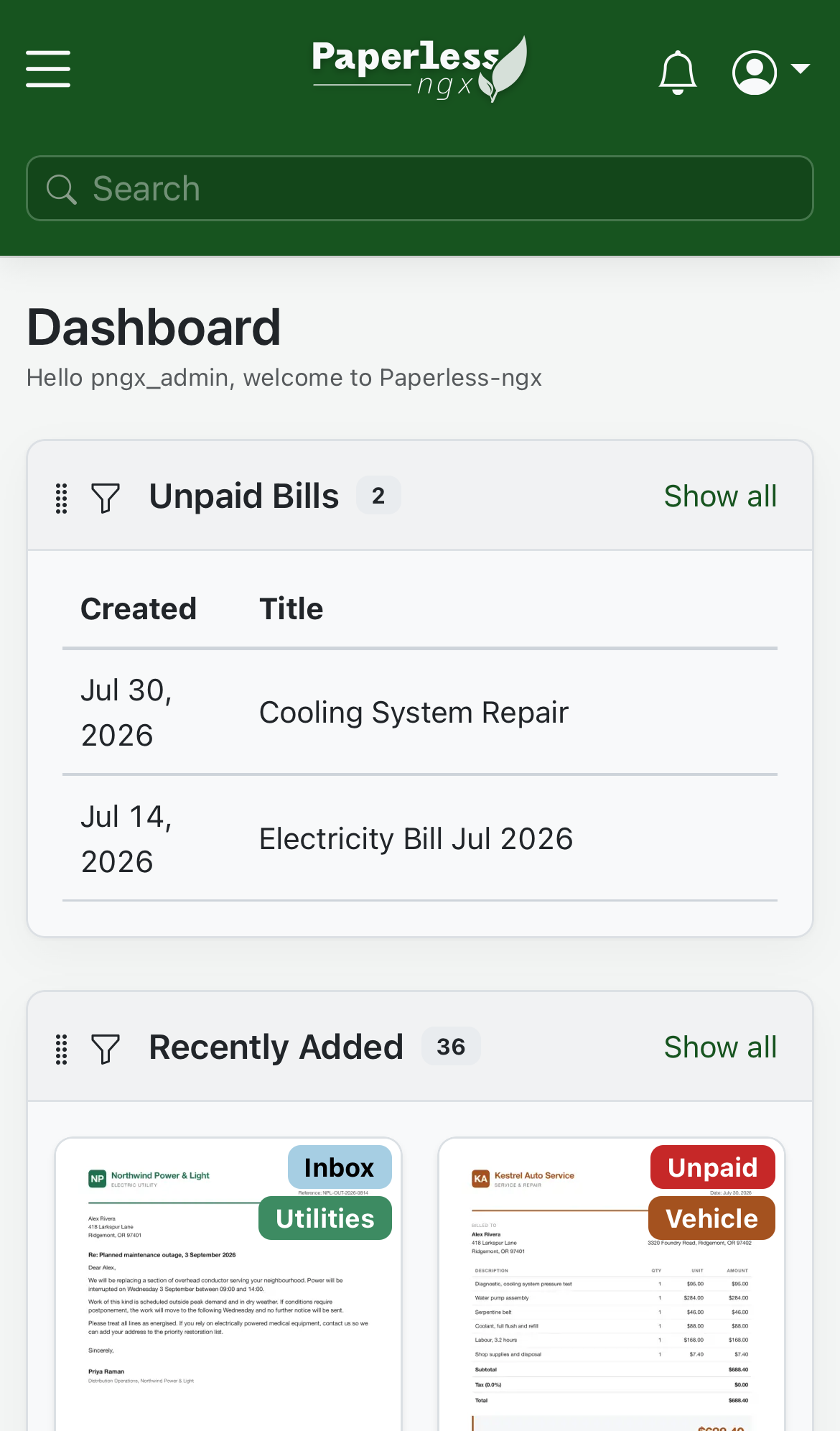
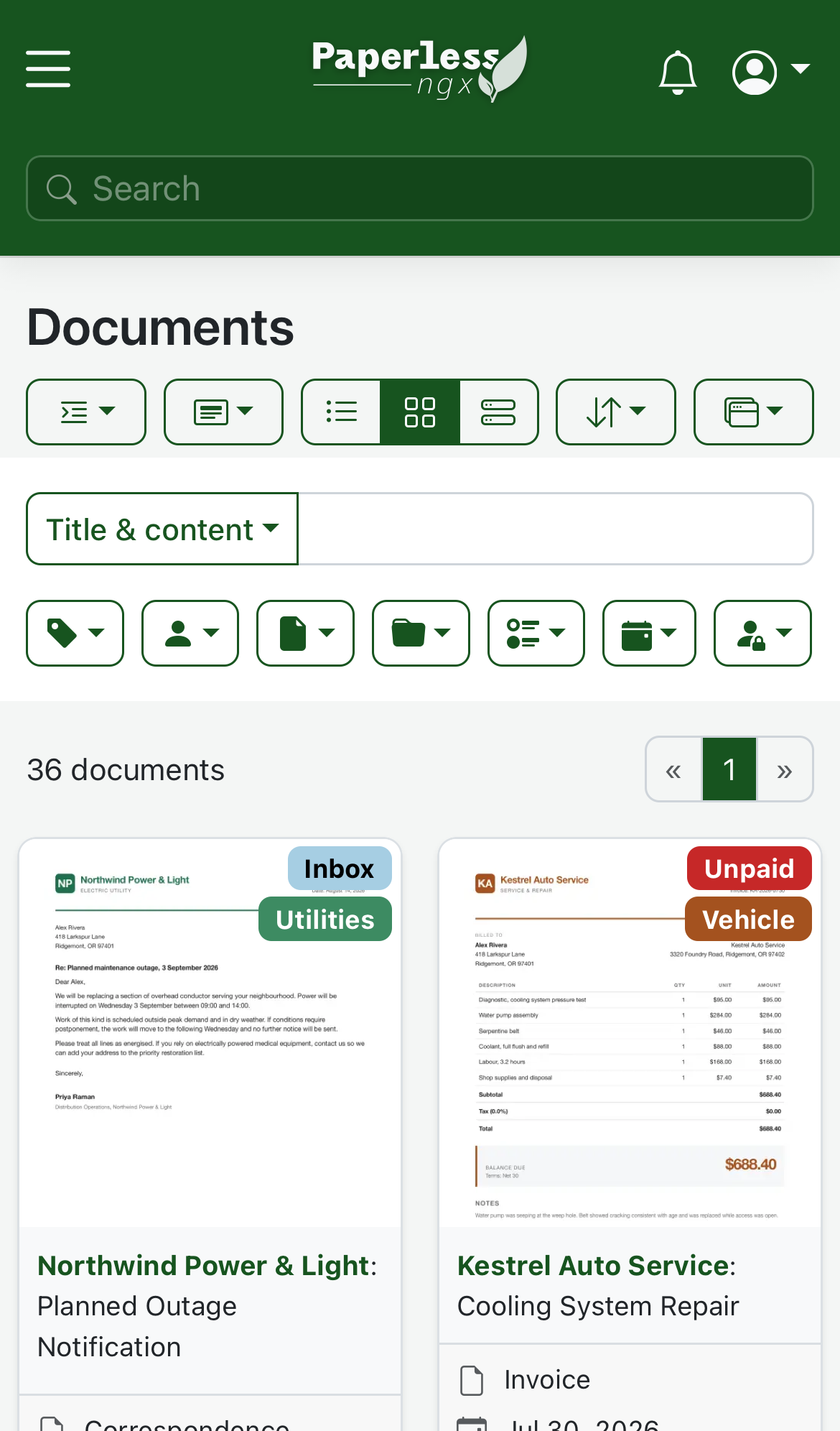
Screenshots below are from the official documentation / demo UI of the project.
Dashboard and list
Filters, search, editing
Automation and mobile web
Requirements and what to run alongside
| Item | Notes |
|---|---|
| Host | Linux (Docker). Windows/macOS via Docker Desktop or a remote Linux/NAS |
| Alongside | PostgreSQL (recommended for new installs), Redis/Valkey, optional Tika+Gotenberg for Office files |
| RAM | Comfortable from ~2–4 GB for a home archive; OCR spikes CPU |
| Disk | Separate volume for media; back it up with Postgres |
Install: quick path (official script)
On a Linux host with Docker Engine and Compose already installed, the project ships an install script that writes a ready compose stack. Follow the current commands in the Setup → Docker docs — the script URL and flags change between releases.
After install, open the UI, create an admin user, and set PAPERLESS_URL to your public HTTPS URL if you sit behind a reverse proxy.
Install: Docker Compose by hand
Copy the official docker-compose.yml (and .env example) from the GitHub repo. Adjust volumes for consume, media, and the published port (for example 8010:8000).
cd /opt/paperless
docker compose up -d
docker compose logs -f webserver
Minimal settings for a non-English archive
For mixed Russian/English documents set OCR languages, for example:
PAPERLESS_OCR_LANGUAGE=rus+engPick languages that match your papers. Extra language packs must be available in the image/container. UI language is a per-user setting in the web app (Settings).
The consume folder and Nextcloud
Anything that appears in consume is ingested. Practical patterns:
- Mount a Nextcloud/Synology shared folder into
consume(watch UID/GID and, on NFS, polling). - Point a scanner’s SMB/FTP destination at that folder.
- Or skip the folder and upload from the web UI / mobile apps.
Install on different platforms
Linux VPS / home server
Preferred path: Docker Compose behind Caddy/nginx/Traefik with HTTPS. Keep Postgres and media on durable disks; snapshot before major upgrades.
Proxmox
LXC or a small VM with Docker is fine. Give the container enough CPU for OCR bursts and a bind-mount or virtio disk for media.
NAS (Synology, TrueNAS, Ugreen, and others)
Run the official compose via Container Manager / custom Docker. Map shares carefully: one share for consume, another (or subfolder) for media. Do not expose port 8000 straight to the internet without HTTPS and access control.
Windows and macOS
Docker Desktop works for experiments. For a family archive that should stay up, prefer a Linux box or NAS and reach the UI from your laptop.
Bare metal (no Docker)
Possible but long: Python venv, system packages, OCRmyPDF deps, system user, release from GitHub, pip install -r requirements.txt, migrate, systemd units for webserver/consumer/scheduler/task-queue. Only worth it if Docker is forbidden. Step-by-step: Bare metal in Setup.
Kubernetes / Unraid / app stores
Community charts and Unraid/CasaOS templates exist, but the “golden path” is Docker Compose from the repo. With any one-click store, check image versions, volumes, Postgres backup, and whether the UI is exposed without HTTPS.
Client apps
The main client is the browser. Phone apps are third-party (not from a single “Paperless Inc.”) — check reviews and permissions.
| Platform | Client | Where to get it |
|---|---|---|
| Android | Paperless Mobile | F-Droid · source |
| iOS / iPadOS | Less Paper | App Store · GitHub · TestFlight available |
| Android / iOS | Paperless Go (Flutter) | GitHub — check releases in the repo |
| Any | Mobile web | Responsive Paperless-ngx UI (screenshots above) |
On Android, a clean way to install without Google Play is F-Droid. In the apps, set your server URL (HTTPS preferred), then login/password or a token if the app supports it.
Scanners and phone upload
- Hardware scanner with SMB/FTP folder → mount/sync into
consume. - Camera in Paperless Mobile / Less Paper / Paperless Go → PDF to the server.
- Compatible scanners and software are listed in the project wiki.
For the archive, even light and 200–300 dpi beat a skewed phone photo: OCR and AI suggestions depend heavily on input quality.
Local AI and Paperless-ngx
In recent releases with AI features, Paperless can (all opt-in, off by default):
- suggest tags / correspondents / types,
- chat about a document’s contents,
- find similar documents via embeddings (RAG).
Backends: ollama (local) or openai-like (OpenAI and compatible gateways, including local llama.cpp / vLLM with an OpenAI API). Variable reference: AI section in configuration.
Example: Ollama on the same machine
PAPERLESS_AI_ENABLED=true
PAPERLESS_AI_LLM_BACKEND=ollama
PAPERLESS_AI_LLM_ENDPOINT=http://172.17.0.1:11434
PAPERLESS_AI_LLM_MODEL=llama3.1
PAPERLESS_AI_LLM_OUTPUT_LANGUAGE=en

PAPERLESS_AI_LLM_EMBEDDING_BACKEND=ollama
PAPERLESS_AI_LLM_EMBEDDING_MODEL=embeddinggemma
PAPERLESS_AI_LLM_EMBEDDING_ENDPOINT=http://172.17.0.1:11434
172.17.0.1 is a typical Docker bridge gateway to the host; on rootless/podman/compose networks use the Ollama service name or host IP. If the container cannot reach the host’s localhost, put Ollama on the same compose network.
Example: OpenAI-compatible local endpoint
PAPERLESS_AI_ENABLED=true
PAPERLESS_AI_LLM_BACKEND=openai-like
PAPERLESS_AI_LLM_ENDPOINT=http://llm:8080/v1
PAPERLESS_AI_LLM_MODEL=qwen2.5-14b
PAPERLESS_AI_LLM_API_KEY=sk-local
PAPERLESS_AI_LLM_OUTPUT_LANGUAGE=en
Which model and hardware to pick — see the local AI models overview and local chat on CachyOS. For document suggestions, 7–14B is often enough; embeddings need a separate embedding model compatible with your backend.
Honest limits
- AI does not replace OCR: text has to exist first.
- Suggestions for correspondent/type can be wrong — review before bulk apply.
- Document chat sends text chunks to the chosen LLM endpoint: with local Ollama they stay with you; with a cloud API they do not.
- Embeddings and indexing use disk and CPU on a schedule (
PAPERLESS_LLM_INDEX_TASK_CRON).
Permissions, HTTPS, and backup
- Facing the internet: HTTPS only, and preferably restricted access (do not publish port 8000 to the world).
- Passports and medical records: separate user/group permissions — not “every family member sees everything”.
- Back up the Postgres volume (or SQLite data),
media, and env config; test a restore every quarter. - Before a major upgrade, read Paperless-ngx release notes — migrations happen.
Common failures
| Symptom | Check |
|---|---|
| Files in consume never appear | UID/GID permissions, NFS polling, consumer logs |
| Empty OCR / garbled text | OCR language (e.g. eng or rus+eng), scan quality, language pack installed |
| Office files rejected | Stack with Tika/Gotenberg |
| Login breaks behind a proxy | PAPERLESS_URL, CSRF/trusted hosts in the docs |
| AI does not answer | Network to Ollama, model pulled (ollama pull), PAPERLESS_AI_ENABLED |
How it fits with Nextcloud, Synology, and the rest
The practical point is simple: the cloud stores files as-is; Paperless turns scans into a searchable archive. You rarely choose “either Nextcloud or Paperless” — they usually live side by side.
- Nextcloud — drive and sharing; a scans folder can sync into
consume. - NAS (Synology and others) — hardware and Docker; Paperless is another container, Drive/Photos stay put.
- Immich — holidays and family photos; keep receipts and contracts out of that timeline.
- Calendar and contacts are a separate PIM stack — they barely overlap with a document archive.
Bottom line
Paperless-ngx is worth it when you already have too many scans for “I’ll find it in a folder” — and you still want Nextcloud or Synology as the drive. Start with the demo, install Docker on Linux or a NAS, set OCR languages to match your papers, add a mobile client if you like, and only then wire up local AI once “drop a file → find it via search” is solid.
Official: documentation, GitHub. Russian version of this guide: kiberlis.ru/paperless-ngx.
No email, no trackers — just the update feed.