



- 1. Moving all emails from Google to Yandex via the Yandex Mail interface
- 2. Moving all emails with Mozilla Thunderbird
- 1. Enabling IMAP access for an email client in Google Mail (Gmail)
- 2. Enabling IMAP access for an email client in Yandex Mail
- 3. Signing in to Google Mail via Mozilla Thunderbird
- 4. Signing in to Yandex Mail via Mozilla Thunderbird
- 5. Moving emails between mailboxes with Mozilla Thunderbird
You can easily and quickly move emails from Google to Yandex using the Yandex Mail web interface.
You can also move all emails to any mailbox you want, including Mail.ru and Rambler, or the other way around, using Mozilla Thunderbird. This guide uses a concrete example of moving mail from Google to Yandex, because otherwise the instructions would be too long, and differences when moving between other services are minimal.
Mozilla Thunderbird is a free email client based on open-source software.
This guide is a supplement to the existing article “Leaving Google. Preparing for a possible Google block“

1. Moving all emails from Google to Yandex via the Yandex Mail interface
Open Yandex Mail at https://mail.yandex.ru and sign in
Click the Settings button (gear icon) in the upper-right corner, then click Collect mail from other mailboxes

Add the mailbox you want to move mail from

Wait for the mail transfer to finish. Moving emails can take from 10 minutes to an hour. You can stop reading the article here 😸
2. Moving all emails with Mozilla Thunderbird
Originally I wrote this guide using only Mozilla Thunderbird to move emails. This option is harder and slower than moving mail through the Yandex Mail web interface. But I am reluctant to delete this section — it might still be useful to someone 😸
1. Enabling IMAP access for an email client in Google Mail (Gmail)
To use Mozilla Thunderbird, you need to allow IMAP access in Google Mail settings.
To do this, open Google Mail at https://mail.google.com/mail
Then click the Settings button

Click See all settings

Click Forwarding and POP/IMAP, then enable Enable IMAP

2. Enabling IMAP access for an email client in Yandex Mail
To use Mozilla Thunderbird, you need to allow IMAP access in Yandex Mail settings.
To do this, open Yandex Mail at https://mail.yandex.ru
Then click the Settings button

Click All settings

Click Email clients

Enable the setting by checking the box next to Allow access to the mailbox from email clients via the imap.yandex.ru server using the IMAP protocol

3. Signing in to Google Mail via Mozilla Thunderbird
1. Download and install Mozilla Thunderbird from the official website https://www.thunderbird.net/ru/
2. Launch Mozilla Thunderbird
3. Enter your Google account details and click Continue

4. Wait for configuration lookup to finish and click Done

5. A Google sign-in window will appear. Click Next

6. Enter your password in the next window and click Sign in

7. If you have two-factor verification enabled, complete it in a way that works for you. If you do not, skip this step

8. Grant Mozilla Thunderbird the required permissions by clicking Allow

9. Scroll down the window and click Finish


10. Click Set as default if you do not use other email programs, such as Outlook

11. You have successfully added Google Mail to Mozilla Thunderbird

4. Signing in to Yandex Mail via Mozilla Thunderbird
Adding a second mailbox in Mozilla Thunderbird
1. Click the three-line button in the upper-right corner of Mozilla Thunderbird

2. Click Account Settings
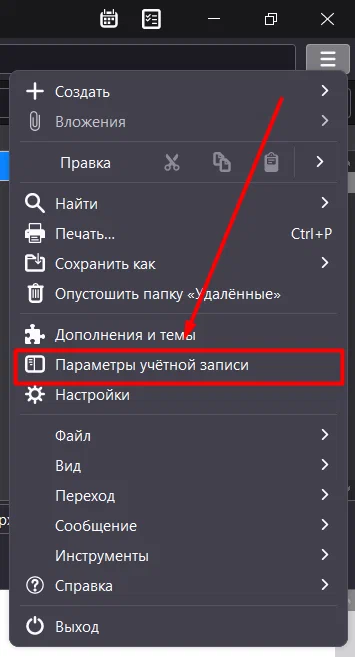
3. Click Account Actions, then click Add Mail Account

4. Enter your Yandex account details and click Continue

5. Wait for configuration lookup to finish and click Done

6. A Yandex sign-in window will appear. Click Log in or Sign in

7. Enter your password in the next window and click Log in or Sign in

8. If you have two-factor verification enabled, complete it. If you do not, skip this step

9. Click Log in as … or Sign in

10. You have successfully added Yandex Mail to Mozilla Thunderbird

5. Moving emails between mailboxes with Mozilla Thunderbird
1. Click the Inbox folder inside your Google mailbox
2. Click any message in the Inbox folder, then press Ctrl+A on the keyboard to select all messages in the folder
3. Right-click any of the selected messages
4. Hover over Copy To
5. Hover over your Yandex email address
6. Hover over Inbox under it

7. Wait for your emails to finish copying

If needed, repeat copying emails the same way for other folders
Do not use other programs on your computer while copying a large number of emails, and do not touch Mozilla Thunderbird even if it seems frozen until the process finishes (it can take more than 3 hours if there are many emails)
No email, no trackers — just the update feed.
Russian feed
https://en.kiberlis.ru/feed/